USB-C to HDMI Adapter for Phone: DisplayPort Alt Mode Test
Check your phone’s wired video support, then run a USB-C to HDMI no-signal test. Separate DisplayPort Alt Mode, cable faults, and app restrictions.
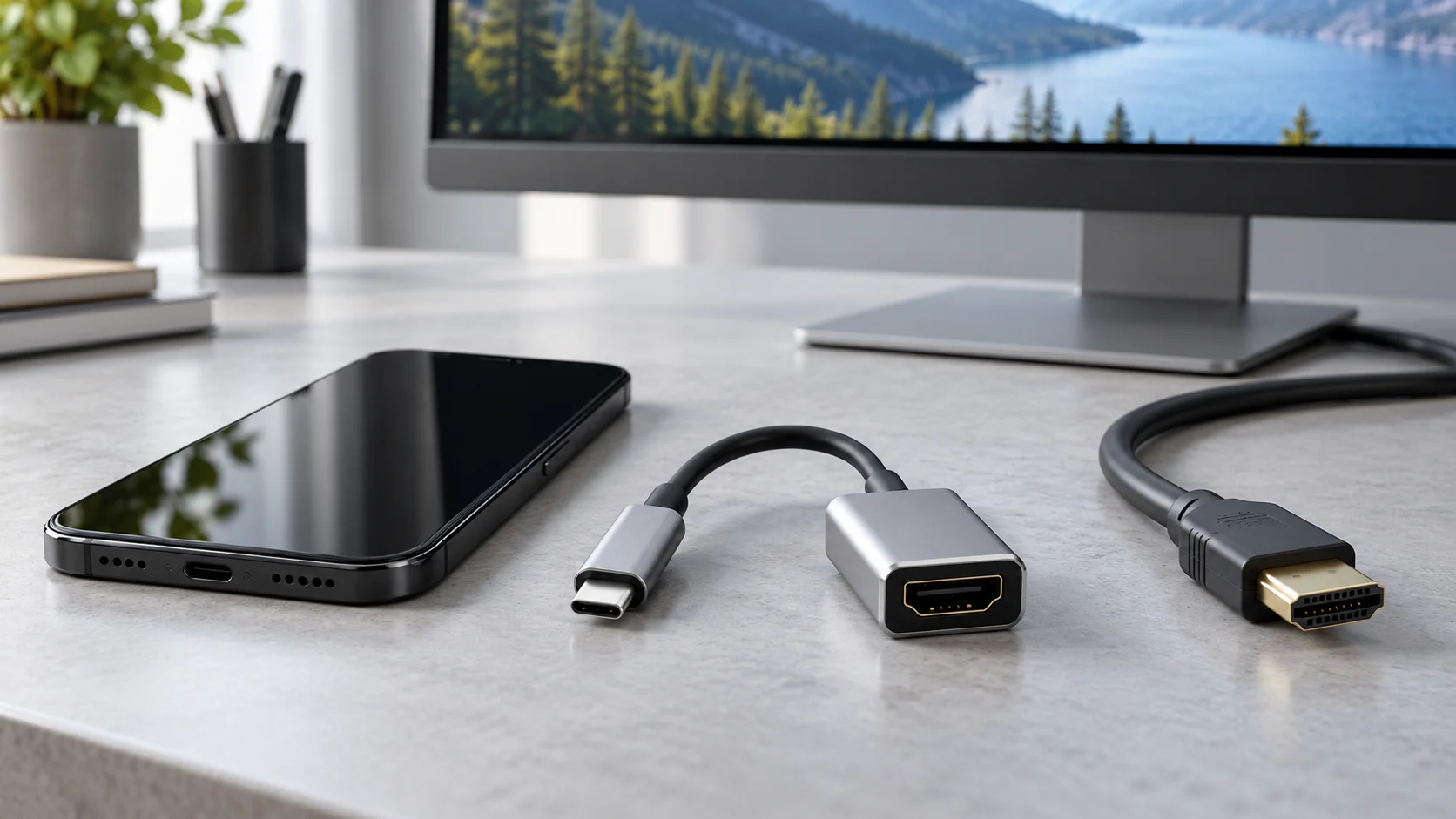
A USB-C to HDMI adapter for a phone needs a compatible video output from the phone. For an adapter that requires USB-C DisplayPort Alt Mode, first confirm that support for your exact model, then test the connection with the phone interface or a local photo. A USB-C socket, successful charging, or a USB data-speed label alone cannot answer the video question.
If your TV says “No signal,” use the checks below to separate a phone compatibility limit from an adapter, cable, input, or app problem. Keep the final checklist beside you so each change produces a useful observation before you buy another accessory.
- Support documented: follow the direct-connection test.
- Manufacturer explicitly excludes wired video: choose another supported display method, such as compatible wireless casting.
- Support unconfirmed: ask the manufacturer about wired display output for the exact model.
- Phone interface appears but one app stays blank: investigate that app’s external-display and content-protection requirements.
Check the exact phone model before replacing the adapter
Look for DisplayPort, external display, wired screen mirroring, or USB-C video output in the phone maker’s specifications or support instructions. Match the full model name, including suffixes. A family name or a retailer’s “USB-C compatible” label is too broad to establish the connection.
VESA’s DisplayPort FAQ directs users to device documentation to identify Alt Mode support. A DP logo can also identify support, but a missing logo is not enough to rule it out. If the specification lists only charging and data transfer, treat wired video as unconfirmed and seek a model-specific answer.
These official-document examples show how to make the check:
Scroll horizontally to see all columns.
| Phone or family | What the manufacturer documents | What to check next |
|---|---|---|
| iPhone 15 | Apple’s iPhone 15 — Tech Specs lists DisplayPort under Charging and Expansion. | Match the adapter and display requirements to the intended output. |
| iPhone 16 family | Apple’s Charge and connect with the USB-C connector on your iPhone includes iPhone 16 models except iPhone 16e in its external-display list. | Keep the exact suffix in your compatibility check. |
| Google Pixel | Google’s Project your Pixel phone’s screen documents a wired connection for Pixel 8 and later, with a Mirror display prompt. | Follow the wired section and accept the phone’s prompt. |
| Samsung Galaxy | Samsung’s Use the Samsung DeX screen on your Galaxy phone or tablet distinguishes connection methods and gives direct HDMI setup instructions. | Check the exact model against the wired DeX requirements and its own display documentation. |
Wireless casting, wireless DeX, and connecting a phone to a PC are different connection paths. Confirm the wired method you intend to use. For a Galaxy model, absence from a wired DeX list also needs care: check its separate mirroring documentation before concluding that every form of wired display output is unavailable.
When comparing replacement handsets, add wired-display support to the ownership checks in our smartphone guides.
USB-C DisplayPort Alt Mode is separate from USB data speed
DisplayPort Alt Mode allows video to use USB-C connector and cable lanes. An ordinary DP Alt Mode USB-C-to-HDMI adapter converts that video signal for the display’s HDMI input. The phone supplies the video; the adapter converts its format.
USB 2 does not automatically mean “no video.” Apple’s iPhone 15 specifications list both DisplayPort and USB 2 data transfer at up to 480 Mb/s. That single model is enough to disprove a blanket USB 2 exclusion. Check the video specification separately on every handset, including those with faster USB data.
Keep three questions separate:
Scroll horizontally to see all columns.
| Capability | What establishes it | What a successful check tells you |
|---|---|---|
| Charging | Supported power connection and charging behavior | Power is reaching the phone. |
| USB data | Phone and cable data specifications, plus the relevant data connection | That data-transfer path works. |
| Wired display | Model-specific video support and a compatible display connection | The phone can provide video over that supported path. |
A phone can charge through an accessory while the display remains blank. The USB-C Power Delivery guide explains the power side; video support still needs its own check.
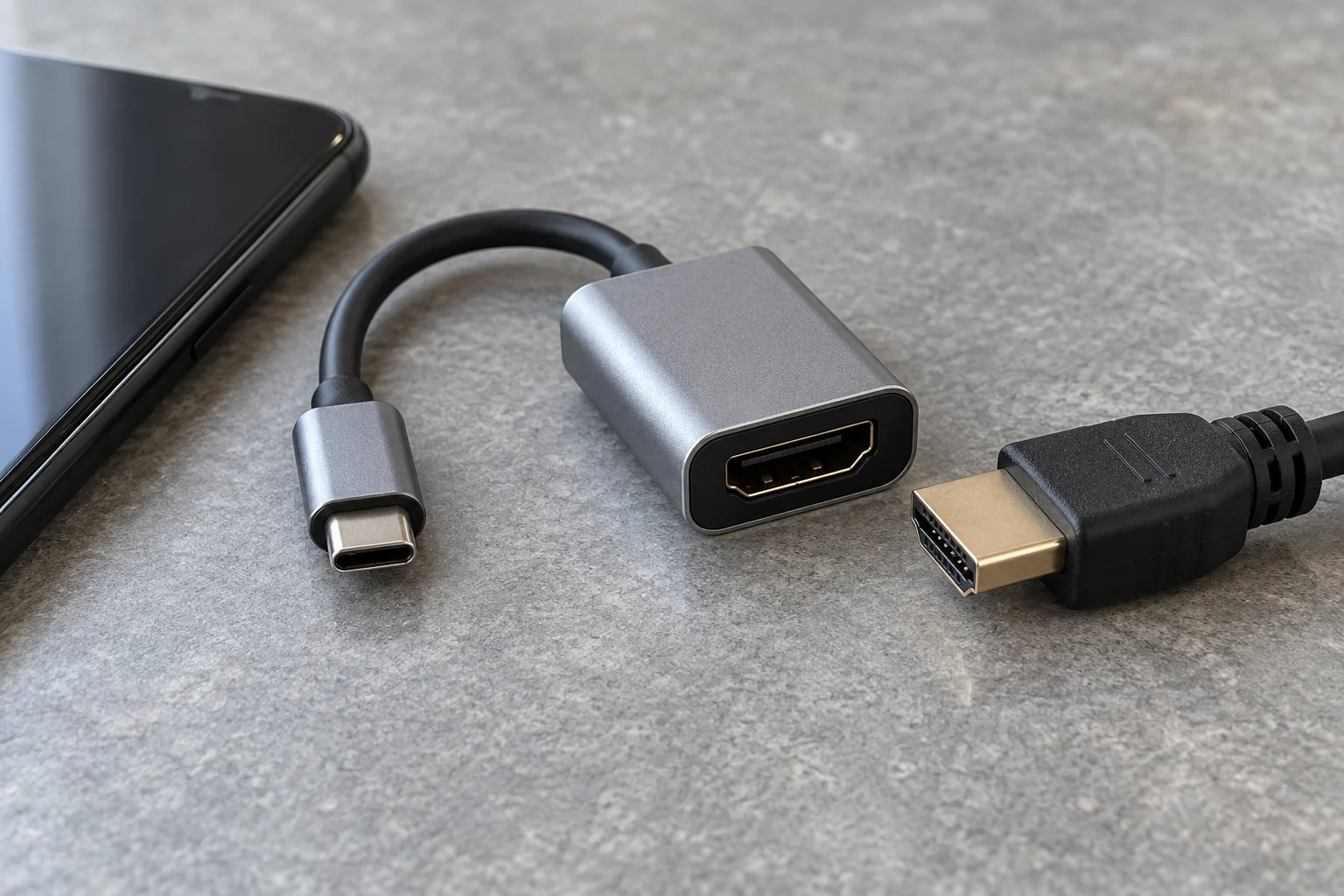
Connect the adapter’s USB-C end to the video-source phone and its HDMI side to the display cable. Check the accessory’s stated source and display direction.
For a dongle with an HDMI socket, the path is phone → USB-C-to-HDMI adapter → HDMI cable → display HDMI input. An adapter cable combines the middle connection into one accessory. VESA calls these protocol adapters or converters: describing every USB-C-to-HDMI accessory as a “passive cable” misses that conversion step.
Read the adapter specification for a DP Alt Mode host requirement. A converter with that requirement cannot add missing DisplayPort output to a phone. A reverse-direction HDMI-to-USB-C product or a USB capture device performs a different job, so check the direction before ordering.
Run the USB-C to HDMI no-signal test
Once the phone’s wired-output support is documented, start with the shortest supported connection and change one component at a time. Use a phone screen or local photo first, then move to the app you actually want to display.
1. Record the phone and connection
Write down the exact phone model, operating-system version, adapter identity, HDMI cable, and display model. Keep the manufacturer’s wired-display instructions with the record. If the model explicitly lacks the required output, stop the ordinary DP Alt Mode adapter test here.
2. Connect directly and select the occupied HDMI input
Connect the adapter to the phone and the HDMI cable to the display. Remove unnecessary extensions or additional video converters for the first check. If your chosen adapter requires external power, follow its own instructions.
On the TV or monitor, select the input that matches the socket you used. Check the physical socket label against the input menu; moving the cable to another socket requires changing that selection too.
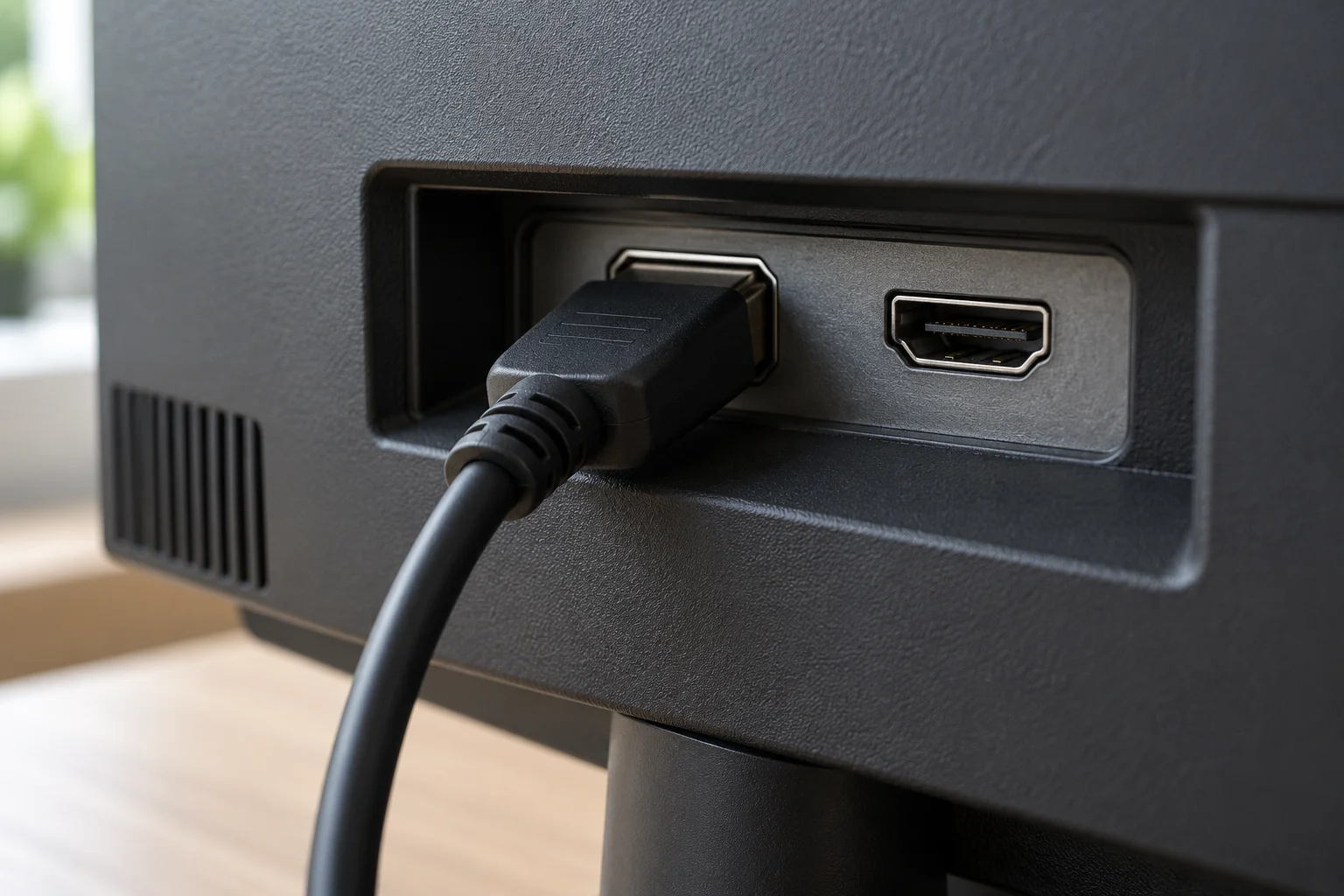
Trace the cable to the occupied input before selecting the TV or monitor source. Adjacent HDMI sockets are separate input choices.
3. Unlock the phone and respond to its display prompt
Follow the instructions for that model. Google tells Pixel users to select Mirror display. Samsung’s wired DeX instructions include unlocking the device and accepting the startup prompt where it appears; some supported devices begin with screen mirroring. The appropriate prompt or display mode depends on the phone.
4. Check the interface or a local photo
Open a local photo or look for the phone interface on the external screen. If either appears, the wired video path is operating for that combination. Next, open the intended video or presentation app and record its behavior separately.
If the entire display stays blank, continue with connection isolation. If only one app fails, use the app branch in the table below. This distinction prevents an app restriction from sending you back through the whole hardware checklist.
5. Reconnect, then substitute one known-working component
Reseat the adapter and HDMI connections and make sure the phone’s software is current. Apple’s Get Help with Apple Digital AV Adapters specifically recommends reconnecting, checking the HDMI cable, removing additional converters, and updating the device software.
Then try a known-working HDMI cable while keeping the phone, adapter, and display input the same. Record the result before changing anything else. A cable that works in another setup is a useful comparison; the comparison is strongest when that setup uses the same display mode you are trying to achieve.
You can also try an independently documented video-capable USB-C source on the same adapter, cable, and display input. If that source displays successfully, the chain works with that source; focus next on the phone’s support, prompt, software, and compatibility with that accessory. If both sources fail, continue checking the shared adapter, cable, and input. Neither outcome alone identifies a defective part.
Replace a component when the controlled comparison points to it. If several parts change at once and the picture returns, you have restored the connection but have not isolated which change mattered.
Use the symptom to choose the next check
The most useful distinction is between no phone image at all and a working interface with an app-specific failure. Charging, audio, and picture quality are additional observations to record separately.
Scroll horizontally to see all columns.
| Observation | Where to investigate | Next action |
|---|---|---|
| The manufacturer explicitly excludes wired video for this model | Phone output capability | Stop changing ordinary DP Alt Mode adapters; use a display method the phone supports. |
| Wired support is documented, but the TV reports no signal | Selected input, connection, adapter compatibility, phone prompt | Repeat the direct setup and substitute one component at a time. |
| The phone charges but no picture appears | Video support and video connection | Complete the model and signal-path checks independently of charging. |
| A local photo or interface appears, but one app stays blank | App external-display support or protected content | Check the app’s compatibility information and any onscreen error. |
| An HDCP warning appears | Content-protection compatibility | Follow the app and accessory requirements for an HDCP-compatible connection. |
| The image appears at a lower mode than expected | Supported phone output, adapter, cable, display mode | Compare the actual mode with each component’s specifications. |
Apple’s adapter help distinguishes apps that are incompatible with an adapter from content that requires High-Bandwidth Digital Content Protection (HDCP). A successful local-photo check therefore does not guarantee playback from every streaming app. Keep the exact app name and error message in the record.
For persistent failure on a documented setup, send the phone or adapter support team the component list and the substitution results. “This cable change restored the interface on this input” is more actionable than “HDMI does not work.”
Check resolution limits and the direct USB-C monitor path
Treat the adapter’s advertised resolution as one part of the connection specification. The phone, adapter or cable, and display must support the intended mode together. Record the actual resolution and refresh rate if your display or phone exposes them.
For supported iPhones, Apple’s USB-C connection guide says an HDMI 2.0-capable adapter or cable can output up to 4K at 60 Hz. Apply that figure to the supported iPhone setup described by Apple; other phones need their own output specifications. Where the phone or display offers a supported lower-resolution or refresh-rate control, use it as a separate troubleshooting step and record the change.
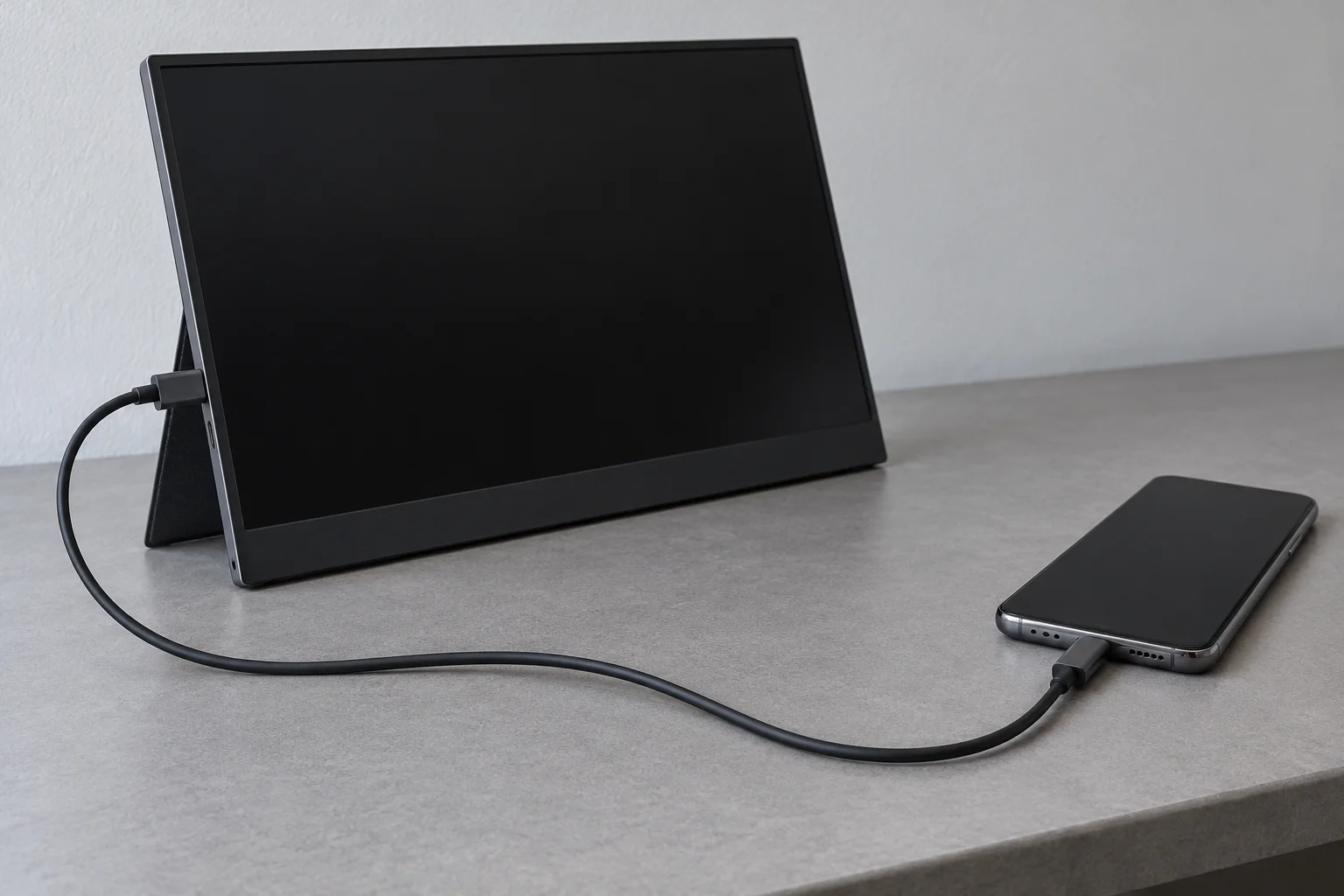
A direct USB-C display connection uses the monitor’s video-capable USB-C input and a cable suited to video. Confirm the monitor’s power requirements separately.
A USB-C monitor creates a different cable path from an HDMI TV. Confirm the monitor’s video input and use a cable specified for that display connection. For its high-resolution USB-C display setup, Apple calls for a cable supporting USB 3.1 or higher. That is a cable requirement, distinct from the phone’s USB data-speed specification.
A charging cable that fits both sockets still needs its video capability checked. Use our USB-C cable selection guide to separate charging, data, and display requirements before choosing a replacement.
Copyable phone-to-display test checklist
Copy this record for your own setup. Keep documented support separate from what you observe, and add a new observation whenever you substitute a component.
PHONE AND SUPPORT
Exact phone model / variant:
Operating-system version:
Manufacturer wired-display support page:
Support status: documented / explicitly unsupported / unconfirmed

CONNECTION
Adapter or adapter-cable model:
Adapter host requirement and direction:
HDMI cable:
Display model and physical input used:
Selected display input:
Required accessory or monitor power connected:

OBSERVATIONS
Phone unlocked / display prompt accepted:
Phone interface or local photo visible:
Intended app and its result:
Exact error or HDCP message:
Actual resolution / refresh rate, if shown:

ONE CHANGE AT A TIME
Component or setting changed:
What stayed the same:
Observed result after the change:
Next action:
If support is explicitly absent, choose a supported display method. If the interface appears, move on to the intended app and output mode. If a supported phone still gives no signal, use the recorded comparisons to narrow the fault before replacing more accessories.
Related articles
Using USB-C Headphones on Android: Digital Audio & DAC Checks
USB-C headphones stay silent when the adapter is analog-only. Use the AOSP digital-to-analog rules, then log playback, the microphone, buttons, and a blank call cell.
Read article
Is It Worth Replacing a Battery in a Cell Phone?
A worn battery can waste a cell phone that still works. Match the health screen, the software-support window, and the other hardware before you replace the phone.
Read article
How to Compare Phone Battery Life
Best smartphone battery life is the endurance hour under one named test. Copy that hour, the rated capacity, and the class from the sheet that prints them.
Read article