How to Choose a USB-C to USB-C Cable for Charging and Data
Match a USB-C to USB-C cable to the 3 A, 5 A, and data rows in USB Type-C Release 2.5, then check the charger's published voltages.
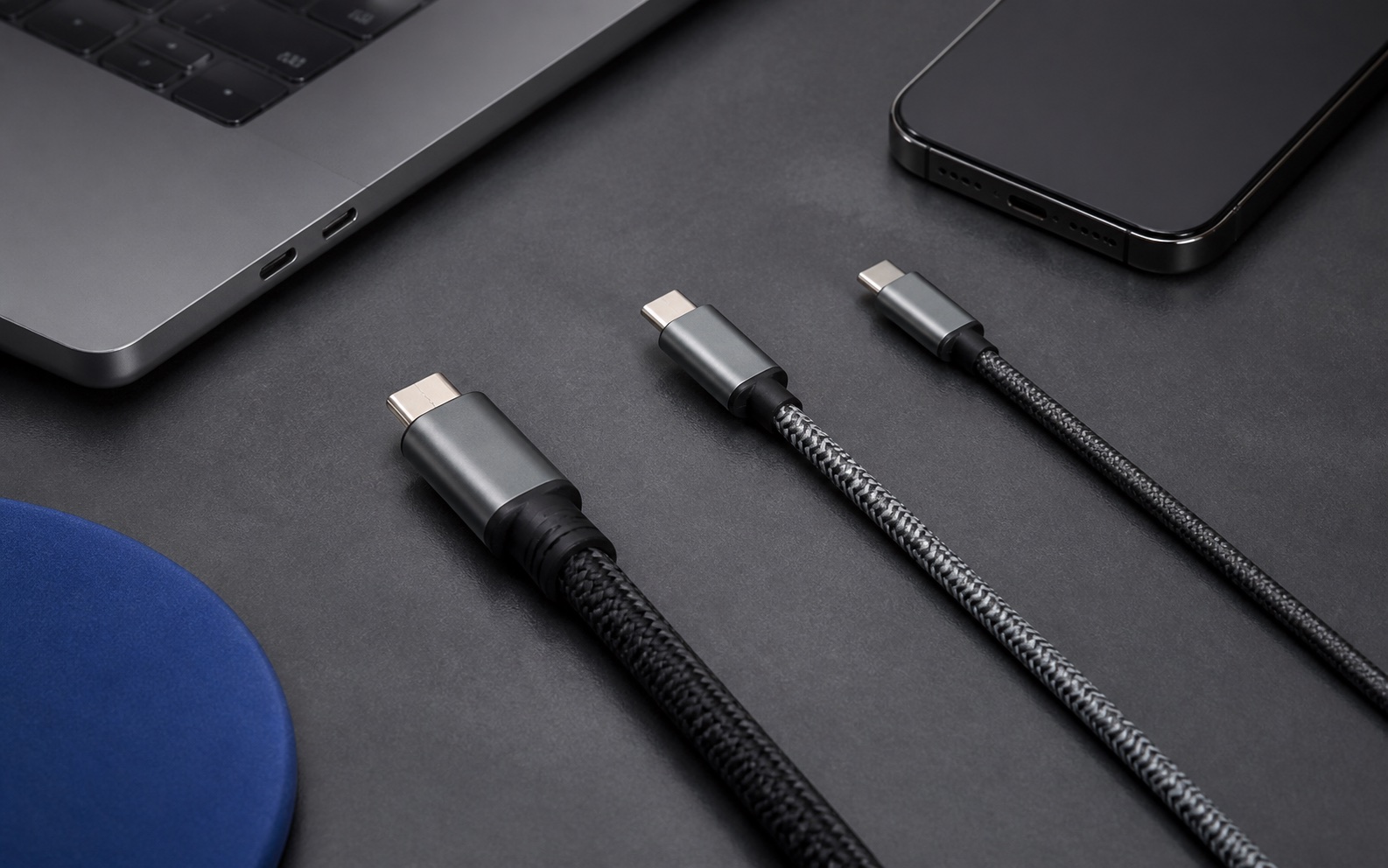
A USB-C to USB-C cable in the wrong current class wastes the charge the device can accept and can leave a dock without a SuperSpeed path. Choose the cable from the current and data rows in the USB Type-C Cable and Connector Specification, Release 2.5 (March 2026), then match those rows to the charger and the device. Every standard USB-C to USB-C assembly uses the same plug, so the metal shell does not name the row.
A USB-C to USB-C cable is a rated assembly, and the plug is only the shell. Release 2.5 rates standard assemblies at 3 A, requires an electronic marker above 3 A, and requires an EPR cable marked for 50 V and 5 A. Certified icons use 60 W or 240 W, and a full-featured cable also shows a data rate, with 5 Gbps, 20 Gbps, or higher as examples. USB-IF’s charger page puts USB PD 3.1, announced in 2021, at up to 240 W, after an earlier ceiling of 100 W at 20 V on 5 A cables. The device receives the negotiated contract. The cable rating is the ceiling that contract has to fit.
Scroll horizontally to see all columns.
| Input or item | Typical value or source | Why it matters |
|---|---|---|
| Plug pair | USB-C plug at both ends (Release 2.5, section 2.2) | This page is about that assembly. A USB-A or USB-B end is a legacy cable with its own table. |
| Standard current | 3 A (section 2.4 and Table 3-1) | Assemblies above 3 A are electronically marked. |
| EPR cable mark | 50 V and 5 A, with the EPR Mode Capable bit (section 3.11) | Required for Extended Power Range. Table 3-1 note 1 deprecates SPR-only 5 A cables. |
| Certified power icons | 60 W or 240 W (sections 3.4.1.1 and 3.4.2.1) | Those are the two power ratings the specification names for certified cable icons. |
| PD ceilings | Up to 240 W; 48 V enables up to 240 W. Earlier ceiling 100 W at 20 V on 5 A cables (USB-IF charger page) | The icon and the negotiated contract are separate figures. |
| USB4 rate | Up to 80 Gbps on 80 Gbps certified cables (USB-IF USB4 page). Table 5-1 also lists 20 Gbps and 40 Gbps classes | A power icon does not state this rate. |
| Informative passive length | USB 2.0 up to 4 m; USB 3.2 Gen 1 up to 2 m; USB 3.2 Gen 2 up to 1 m; USB4 Gen 3 and Gen 4 up to 0.8 m (Table 3-1, note 2) | The note calls these practical lengths, not a hard maximum. Length is not a current rating. |
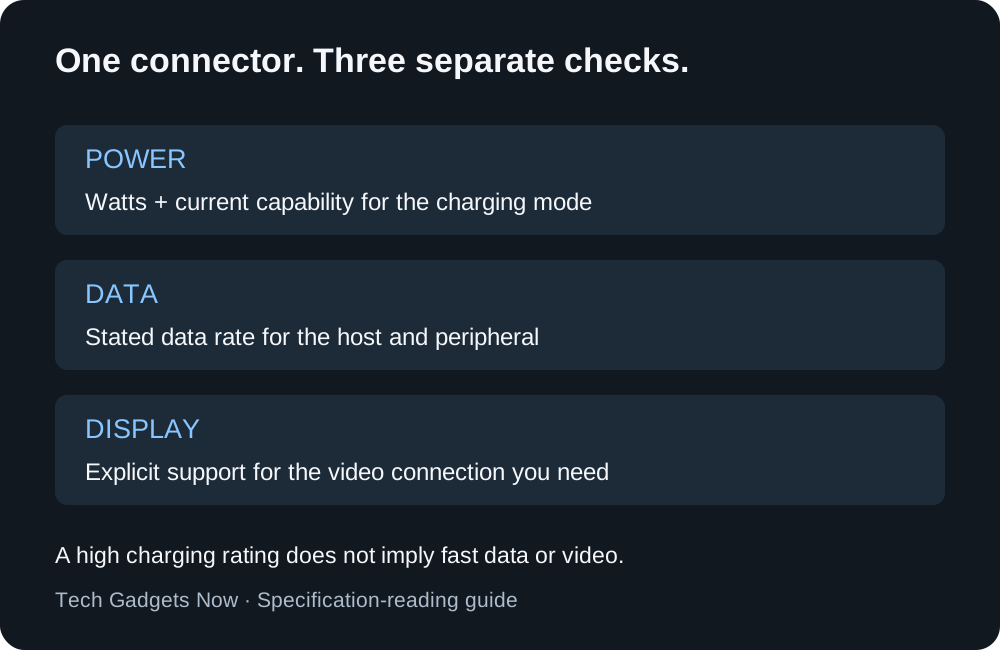
Figure 1. Read power, data, and the display path as three checks. The plug answers none of them.
Pick the row before the watt number
Start with the cable reference in Table 3-1, not with the largest watt figure on the listing. Release 2.5 defines a USB-C to USB-C cable as either a USB 2.0 Type-C cable, for USB 2.0 applications, or a full-featured Type-C cable, for USB 3.2, USB4, and full-featured applications. All full-featured Type-C cables are electronically marked. A USB 2.0 Type-C cable rated above 3 A is electronically marked. On the 3 A USB 2.0 row, Table 3-1 lists the marker as optional.
The receptacle is specified for 5 A. Standard cable assemblies are rated for 3 A. A cable designed for USB PD and identified by an electronic marker is allowed to support up to 5 A. An EPR cable has to support a reported 50 V and 5 A, with a minimum functional voltage of 50.9 V, and the eMarker carries the EPR Mode Capable bit. A USB power source shall not provide more than 48 V nominal on VBUS.
Scroll horizontally to see all columns.
| Cable row | What Release 2.5 assigns | Dominant failure mode | Prevention |
|---|---|---|---|
| USB 2.0, 3 A, SPR only | Marker optional. Informative length up to 4 m. | SuperSpeed and SBU pins are open (Table 3-11). If the host’s Discover ID gets no answer from the cable, section 5.4.3.2 exits USB4 discovery and continues with USB 2.0. A dock then charges while the display path stays down. | Use a full-featured cable when the host needs USB 3.2, USB4, or a full-featured application. |
| Full-featured, 3 A, SPR only | Marker required. Length follows the data row: up to 2 m, 1 m, or 0.8 m. | The contract asks for more than 3 A, or for an EPR voltage. Standard assemblies are rated 3 A. | Move to a cable electronically marked above 3 A. For EPR, use the 50 V and 5 A EPR cable. |
| 5 A, SPR only | Marker required. Table 3-1 note 1 deprecates this row. | A buyer treats a legacy 5 A SPR cable as the current EPR cable. | Prefer the EPR-capable 5 A version that replaced it. |
| 5 A, SPR and EPR | Marker required. Marked 50 V and 5 A. | The 240 W icon is read as the phone or laptop charge rate. USB-IF states that a certified cable leaves the connected products’ capabilities unchanged. | Read the charger’s voltages and the device’s required input beside the icon. The cable rating is the ceiling. |
USB-IF’s cable and connector page states that cables differ in capability, that the user selects a certified cable for the job, and that a certified cable is not a substitute for certifying the products on either end.
Apply the 3 A threshold, then do the watt arithmetic
Rule of thumb. If requested current exceeds 3 A, or the contract uses an EPR voltage from 28 V to 48 V, prioritize a USB-C to USB-C cable electronically marked for 5 A and 50 V. Release 2.5 rates standard assemblies at 3 A, deprecates SPR-only 5 A cables, and section 3.11 requires that EPR mark. Below that threshold, with the contract inside Standard Power Range and at or under 3 A, the standard 3 A USB-C to USB-C assembly is the matching current class.
Power (W) = voltage (V) × current (A).
Worked example. USB-IF’s charger page prints four power and voltage pairs. Divide each power by its voltage.
Scroll horizontally to see all columns.
| Pair on the USB-IF charger page | Quotient |
|---|---|
| 100 W at 20 V, the pre-3.1 ceiling, on cables rated at 5 A | 100 / 20 = 5 A |
| 140 W at 28 V | 140 / 28 = 5 A |
| 180 W at 36 V | 180 / 36 = 5 A |
| 240 W at 48 V | 240 / 48 = 5 A |
Each quotient is 5 A. That is the same maximum current Table 4-19 lists for USB PD, and it is the current section 3.11 puts on the EPR cable mark. A 3 A rating multiplied by the same 48 V is 144 W. The 240 W figure on the charger page sits with the 5 A result, not with the 3 A standard assembly.
The low end of the same formula is on Table 4-19. USB Type-C Current at 3.0 A is a 5 V advertisement with a maximum current of 3.0 A, so 5 × 3.0 = 15 W. USB Type-C Current at 1.5 A is 5 V at 1.5 A, so 5 × 1.5 = 7.5 W. Default USB power stays at the current in the USB 2.0 or USB 3.2 specification the port is using: the Type-C text names 500 mA for USB 2.0, and 900 mA or 1,500 mA for USB 3.2 single-lane or dual-lane. Once a USB PD contract is in place, Table 4-19 puts that contract above Type-C Current, USB BC 1.2, and the older bus-power rules. The device follows the contract.
How USB Power Delivery sets that contract is the next page when you have the cable class and still need the charger and device roles. The charger page also describes an adjustable voltage supply from 15 V up to the charger’s maximum fixed voltage. What PPS charging changes in that request is the page for the adjustable case, where the current at the chosen voltage is the figure to compare with 3 A.
Read the icons, the marker, and the length together
Sections 3.4.1.1 and 3.4.2.1 say certified USB-C to USB-C cables should carry the USB-IF identification icons so you can see the power rating, either 60 W or 240 W. On a full-featured cable the same section adds the data performance, and it gives 5 Gbps, 20 Gbps, or higher as examples. The USB 2.0 certification paragraph names the power rating and does not add those data-rate examples, which matches a cable whose SuperSpeed pins are left open.
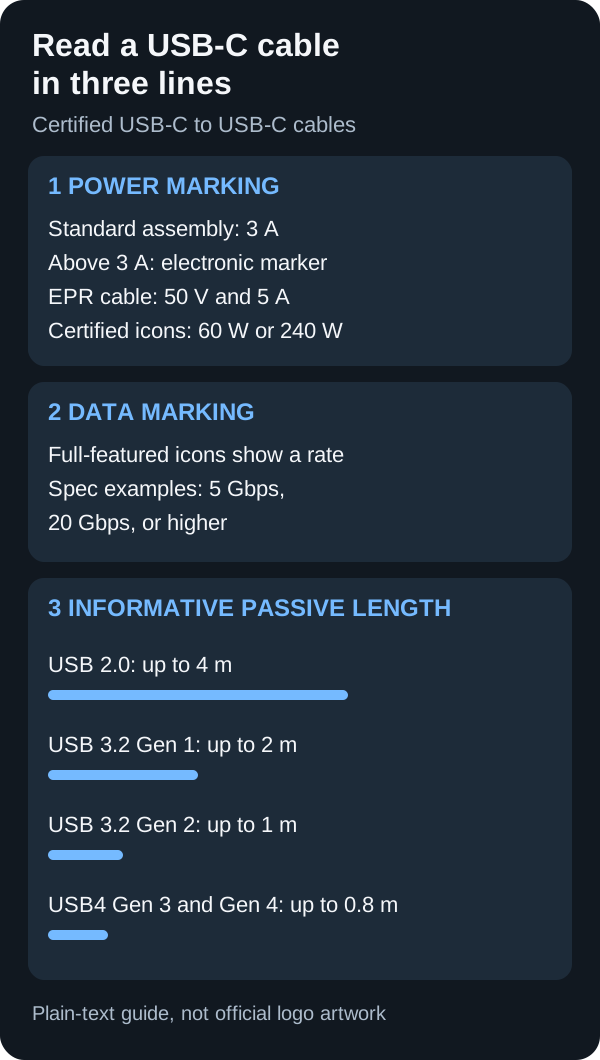
Figure 2. Labels taken from Release 2.5 sections 3.4.1.1, 3.4.2.1, 3.11, and Table 3-1. Lengths are informative. This is a plain-text guide, not official logo artwork.
Table 3-1, note 2, calls the lengths informative practical lengths based on cable performance. Note 3 says a USB4 Gen 4 passive cable is electrically equivalent to a USB4 Gen 3 passive cable. A 10-foot listing is about 3 m. That length sits inside the USB 2.0 informative length of 4 m and outside the 2 m, 1 m, and 0.8 m rows. Use the length to choose the data row to ask about. Then read the data rate the maker states for that exact length. The word “active” is not a data rate. Table 5-1 note 1 states that SuperSpeed USB active cables do not support USB4-compatible operation. Active USB4 cables in that table are listed at 20 Gbps (Gen 2), 40 Gbps (Gen 3), or 80 Gbps (Gen 4).
The electronic marker is powered from VCONN, in the range 3.0 V to 5.5 V, after the connection is up (section 2.5). Full-featured cables use it. A USB 2.0 cable uses it when the current rating is above 3 A. If you are comparing two jackets that both say 240 W, the data icon and the Table 3-1 length row are the remaining split.
USB-IF’s public product search lists products certified to bear the USB-IF logo. The default view shows certifications from the last two years, and USB-IF tells the seller to confirm that an older listing still meets the current program. Match the maker and model on the listing to that record when the listing claims the logo.
Use a full-featured cable when the dock needs a data path
A full-featured cable is the section 2.2 assembly for USB 3.2, USB4, and full-featured applications. Table 3-10 wires the SuperSpeed pairs and the SBU pins through that cable. Table 3-11 leaves those pins open on a USB 2.0 Type-C cable. Section 2.3.6 enables USB4 and Alternate Modes over the CC wire, using USB PD. A USB 2.0 cable is the wrong row for that path even when its power icon reads 60 W or 240 W.
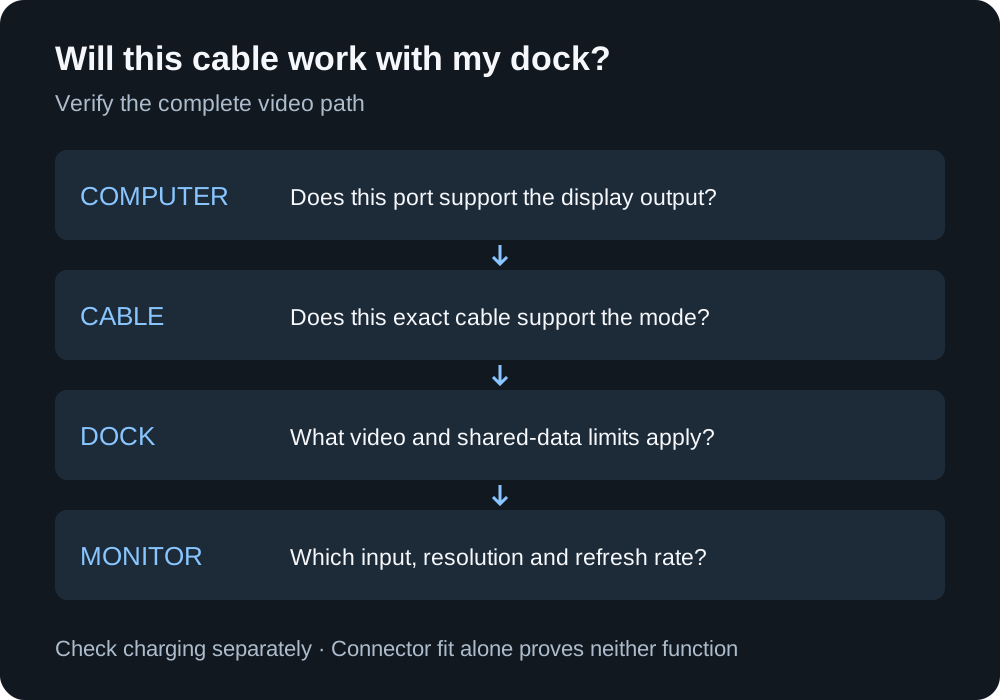
Figure 3. Write down the computer port, the cable and its length, the dock, and the monitor input. Check charging and the data path as separate lines.
USB-IF’s USB4 page states two facts side by side. USB4 uses two-lane operation on existing USB Type-C cables, and it supports up to 80 Gbps on cables certified for 80 Gbps. Table 5-1 is the split behind that sentence:
Scroll horizontally to see all columns.
| Passive or active class in Table 5-1 | USB4 operation listed |
|---|---|
| Passive USB 3.2 Gen 1 | 20 Gbps. The note says this cable is not certified for USB 3.2 Gen 2, and that USB4 Gen 2 operation will generally work. |
| Passive USB 3.2 Gen 2 or USB4 Gen 2 | 20 Gbps |
| Passive USB4 Gen 3 or Gen 4 | 80 Gbps |
| Active USB4 Gen 2 | 20 Gbps |
| Active USB4 Gen 3 | 40 Gbps |
| Active USB4 Gen 4 | 80 Gbps |
If Discover ID to the cable gets no response, the host leaves USB4 discovery and brings the link up with the USB 2.0 process. A display path that needed USB4, the SuperSpeed pairs, or the SBU pins is outside that fallback. Write the monitor’s resolution and refresh rate from the computer and dock manuals, then confirm the cable row those manuals name. This specification does not assign a resolution or a refresh rate to a cable reference, so those figures stay in the device manuals.
The charger still has to offer the voltage the device requests. After the cable class is settled, how to choose a GaN charger for a phone and laptop is the page for the adapter’s published outputs.
Count the cost of the wrong row
A wrong USB-C to USB-C cable rarely looks wrong. The plug fits. The loss shows up as a second purchase, a dock session with no display, or a port you retire.
Scroll horizontally to see all columns.
| Hidden cost | Trigger | Prevention |
|---|---|---|
| Another cable, and a dark display | USB 2.0 cable on a full-featured dock. SuperSpeed and SBU pins are open. | Full-featured cable with the data rate the host maker states. |
| Charge held to the 3 A class | The contract wants more than 3 A and the cable has no marker for that current. | Electronically marked cable above 3 A. For EPR voltages, the 50 V and 5 A EPR cable. |
| Damaged VBUS contacts | Appendix H: arcing can occur on unplug when the voltage across the VBUS gap is greater than 12 V. The appendix covers EPR voltages of 28 V to 48 V and SPR at 20 V when the current is high. | Use the EPR cable for an EPR contract. Take a plug with damaged contacts out of service. The appendix’s design mitigations are slew-rate control and removing the load before the contacts separate. |
| Data row missed on a long passive cable | Length past the informative figure for that USB version. | Read the stated rate at that length. Keep the short cable the dock shipped with until the replacement names the same class. |
Label the cables you keep by job: desk dock, laptop charge, power bank. Two labeled cables cover most desks. A third is for a separate job, such as a short lead on a power bank. Before a trip, run the adapter, the cable, and the device you will actually carry.
The Charging and power guides collect the adapter and protocol pages that sit next to this one. If the new cable fits and the charger still does nothing, what to check when a USB-C charger is not working is the troubleshooting sequence. Change one part at a time, and keep the cable that already works with that charger as the comparison.
When this page does not apply
This page covers a USB-C plug at both ends. Release 2.5 puts USB-A and USB-B assemblies in Table 3-2. Most of those rows are rated 3 A. One USB 2.0 Mini-B row is rated 500 mA. Where a legacy cable assembly includes an Rp termination, section 3.1.3 requires that resistor to advertise Default USB Type-C Current even though the assembly is rated for 3 A. The resistor reports the legacy port, not the cable’s amp rating. A captive cable, hardwired at one end, follows the same wire assignment with the device standing in for the second plug. A captive sink has to answer SOP’ identity when it draws more than 3 A or supports USB4.
A USB-C receptacle-to-legacy adapter is not defined. The specification says that construction would allow unsafe combinations, so it is outside this buying guide.
Methods and sources
Updated October 2026. Electrical figures come from USB Type-C Release 2.5 (March 2026), Table 3-1 with notes 1 to 3, Table 3-11, Table 4-19, Table 5-1, and sections 2.2, 2.4, 2.5, 3.4.1.1, 3.4.2.1, 3.11, 5.4.3.2, and Appendix H, plus the USB-IF charger, USB4, cable, and product-search pages fetched on 17 October 2026. The watt quotients are arithmetic on the voltage and power pairs those pages print.
The local research library had no USB-IF specification for this topic. No cached search-results page for this query was on file, so none was purchased.
Related articles
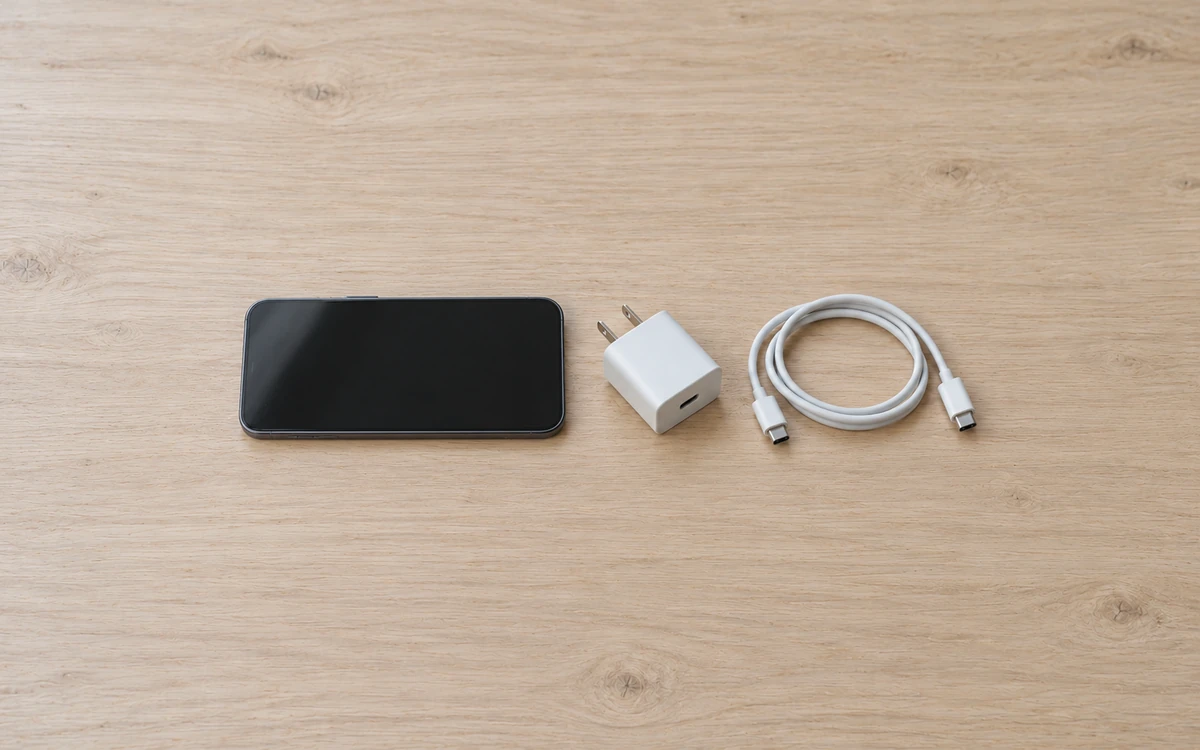
Which USB-C Charger and Cable Does Your iPhone Need?
Match the iPhone port, then copy the adapter watts from the Apple page for that model. A 60W or 240W mark on a USB-C cable is a cable logo. PPS is a USB Power Delivery 3.0 mode.
Read article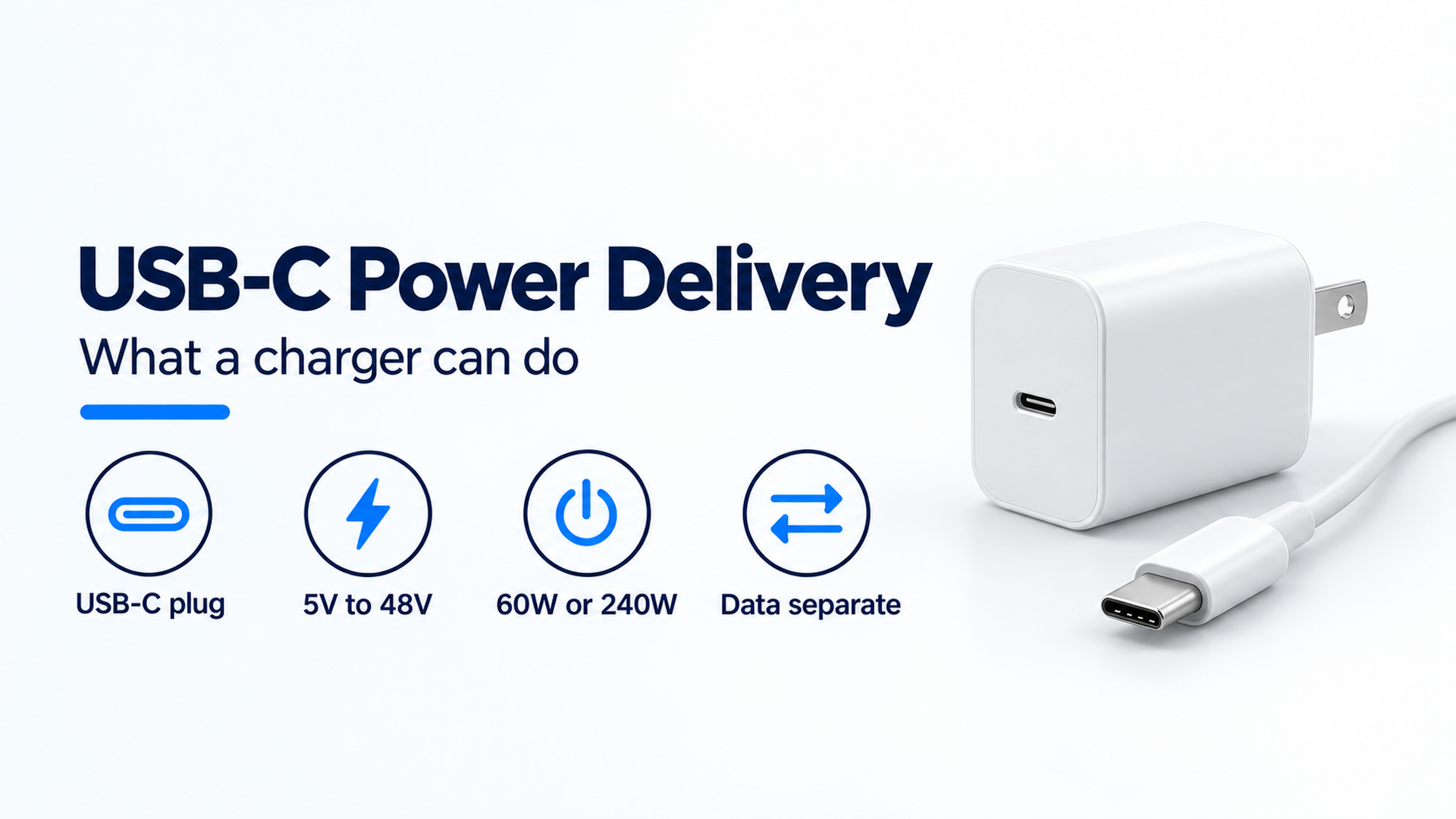
USB-C Power Delivery Explained: What a Charger Can Actually Do
USB-C is the connector. USB Power Delivery is the separate power contract, with fixed voltages from 5V through 48V and a 240W ceiling on the 2021 USB-IF update.
Read article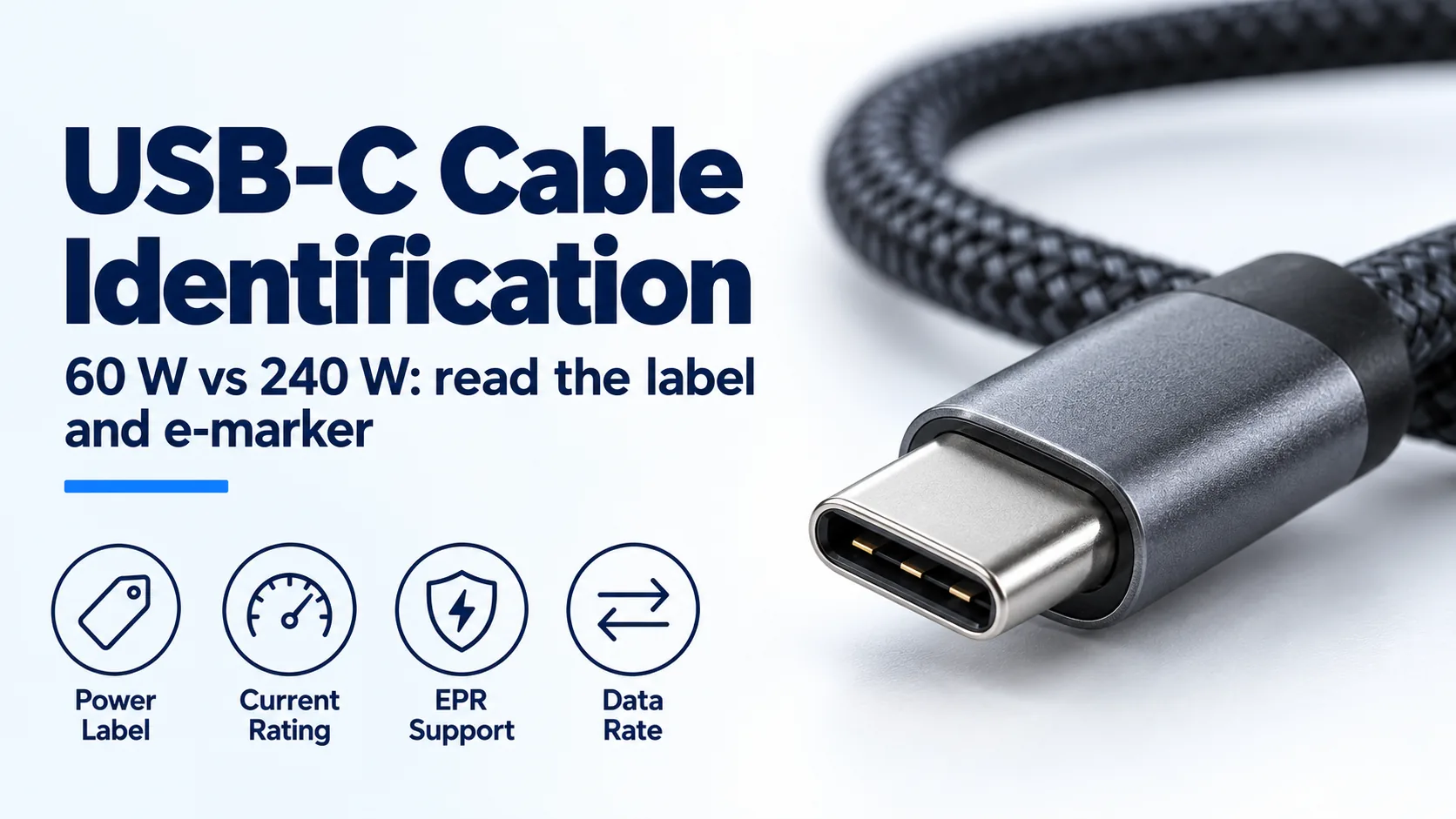
USB-C Charger Cable: 60W vs 240W E-Marker Identification
Identify a USB-C charger's cable by its 60 W or 240 W label, current capability and e-marker; distinguish older 100 W cables from EPR.
Read article