USB-C Power Delivery Explained: What a Charger Can Actually Do
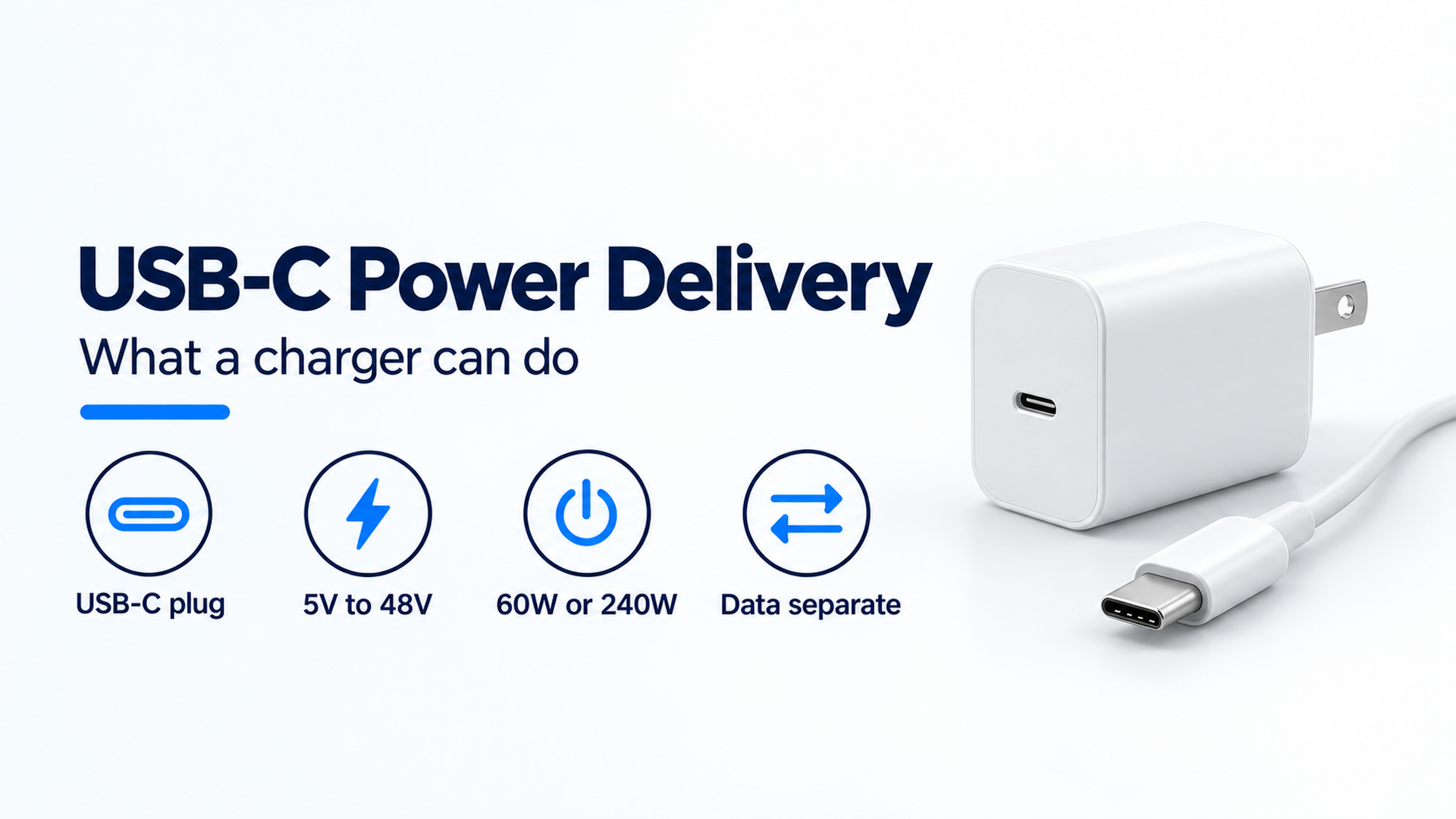
USB-C is the connector. USB Power Delivery is the separate power contract, with fixed voltages from 5V through 48V and a 240W ceiling on the 2021 USB-IF update.
The short answer
A fitting USB-C plug can still waste the higher voltages printed on a charger. USB Power Delivery is the protocol that sets those voltages, and the USB Promoter Group’s 26 May 2021 announcement sets the top of that protocol at 240W over a full-featured USB Type-C cable.
A USB-C charging type starts as the plug, then splits into a power protocol and a data rate that do not share a unit. USB-IF’s cable and connector language guidelines call USB Type-C a connector. They call USB Power Delivery a protocol and hardware solution that increases USB power up to 240W, and they say the terms are not interchangeable. A USB Type-C product is not required to support USB Power Delivery, USB 3.2, or USB4. USB 3.2’s specification page lists data rates of 5Gbps, 10Gbps, and 20Gbps. USB4’s page describes up to 80Gbps on 80Gbps certified cables. The power figures sit on the USB charger page and the 26 May 2021 announcement: a previous ceiling of 100W at 20V on cables rated at 5A, then new fixed voltages of 28V, 36V, and 48V.
- The plug name answers whether it fits. It does not answer the wattage.
- The power contract is the fixed voltage the charger offers and the device requests.
- The cable’s power logo is 60W or 240W on a certified USB-C to USB-C cable, separate from any Gbps mark.
- USB 3.2 and USB4 describe data. They do not replace the power logo.
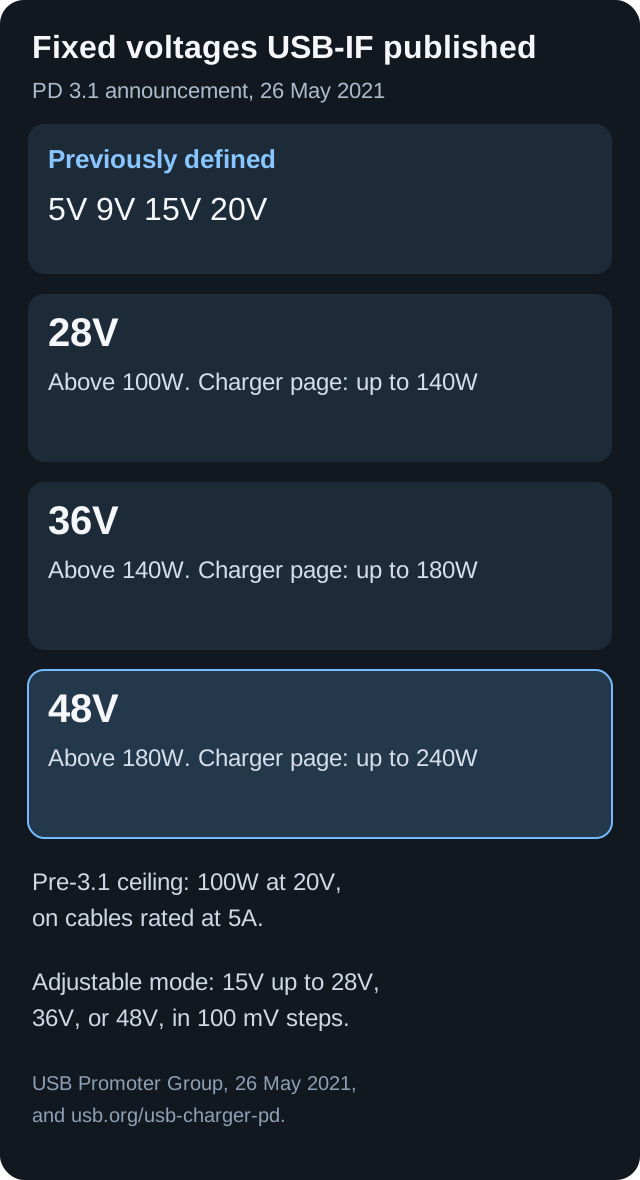
The voltages and ceilings are the ones USB-IF printed in the 26 May 2021 announcement and on the USB charger page. This is a reading aid, not a wiring diagram.
USB-C names the connector
USB-IF’s language guidelines, in the file dated 20 March 2023, say USB Type-C is a type of connector. The recommended messages are about the slim shape, a robust fit for laptops and tablets, and a reversible plug. You can insert either face, and either end of a USB-C to USB-C cable. USB Type-C and USB-C are registered trademarks of USB Implementers Forum for that connector. USB-IF also says “USB-C” is acceptable when you need the shorter name.
The same guidelines draw two hard lines. USB Type-C is not USB 3.2 or USB4. The connector specification supplements those data specifications. USB Type-C is not USB Power Delivery. Power Delivery is the protocol and hardware solution that increases USB power up to 240W. Device makers can add USB Power Delivery, USB4, or USB 3.2. None of the three is required for a product to be a USB Type-C product.
That is why a search for a USB-C charging type has to leave the plug outline and go to the label. The guide to telling a USB-C plug from USB-A, Micro-USB, and Lightning stays with the shape. This page stays with the power contract.
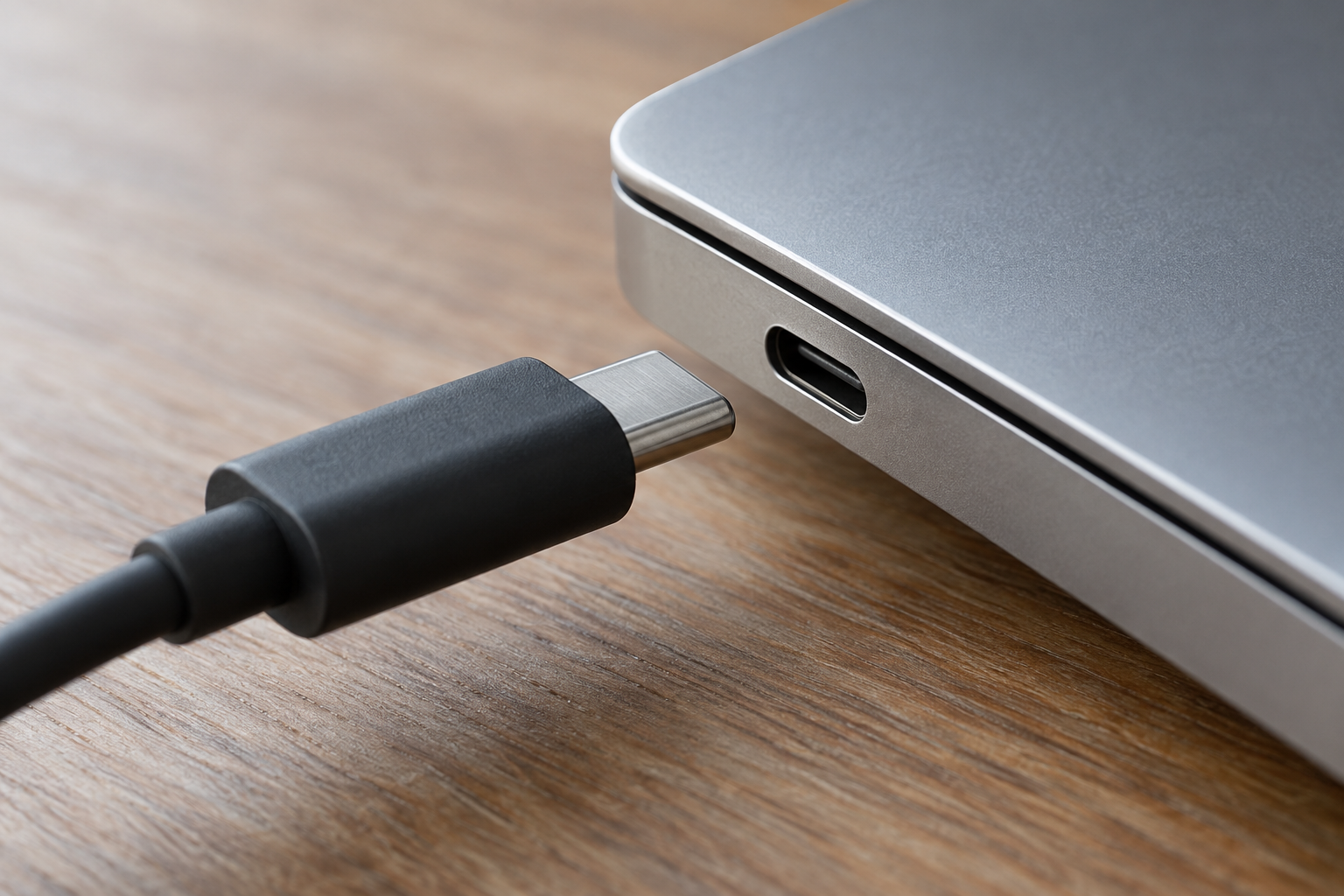
The oval plug is the connector. The photo does not show a power contract, a data rate, or a brand.
The Type-C cable and connector specification page describes the same object: a smaller connector for thinner platforms, with a reversible plug orientation. It says the connector supports scalable power and performance. Scalable means the product designer chooses what to implement. It does not mean every port offers every voltage below.
What USB Power Delivery changed in 2021
The USB charger page describes USB Power Delivery as flexible power along with data over a single cable. Before the 2021 update, USB PD was limited to 100W using 20V and USB Type-C cables rated at 5A. The announcement of USB PD Revision 3.1, dated 26 May 2021, enables up to 240W over the USB Type-C cable and connector. USB-IF says the USB Type-C specification was updated to Release 2.1 to define the 240W cable requirements.
The announcement lists the fixed voltages in two groups.
Scroll horizontally to see all columns.
| Fixed voltage | Where the 26 May 2021 announcement places it | Ceiling on the USB charger page |
|---|---|---|
| 5V, 9V, 15V, 20V | Previously defined fixed voltages | The pre-update path used 20V for the 100W ceiling |
| 28V | Above 100W | Up to 140W |
| 36V | Above 140W | Up to 180W |
| 48V | Above 180W | Up to 240W |
Read the two columns as two sentences USB-IF actually published. The announcement says 28V is the fixed voltage above 100W, 36V above 140W, and 48V above 180W. The charger page says those three fixed voltages enable up to 140W, 180W, and 240W respectively. This page does not convert those watts back into a current and then call that current a cable rating.
Texas Instruments’ note in the same announcement says the revision includes the capability to provide up to 48V and 240W. That sentence is a member comment on the specification. It is not a measurement of a charger on a desk.
The announcement also says the new architecture uses a stricter power negotiation so the higher range can be used safely, and that products in the 100W to 240W range follow the safety specifications of each country where they are sold. USB-IF does not name a single consumer test you can repeat at home in that paragraph. Treat a damaged plug, a hot housing, or a scorched port as a reason to stop using that part.
Two other behaviors on the charger page matter when you are choosing a brick. Power direction is no longer fixed, so the product that has the power, host or peripheral, can supply it. USB-IF’s own example is a monitor that takes wall power and then powers or charges a laptop while the laptop still displays. Each device takes only the power it requires, and can take more when the application needs it. Power Delivery is designed to coexist with USB Battery Charging. This page does not restate Battery Charging currents, because those numbers are not on the pages saved for this update.
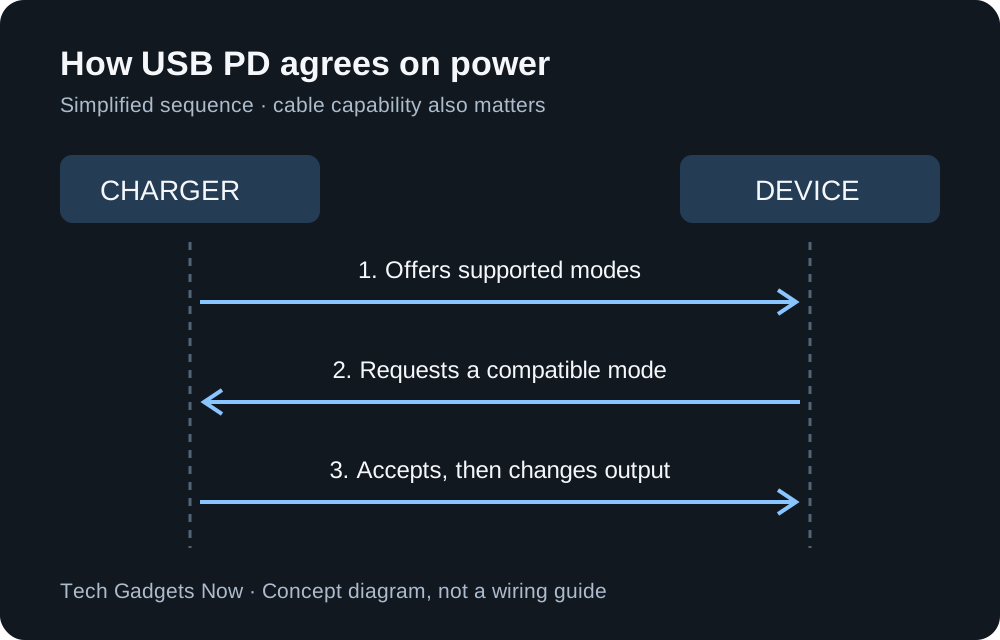
A simplified sequence for the negotiation USB-IF describes. The cable still has to be allowed to carry the agreed mode. This is not a pin diagram.
Adjustable voltage stays inside the charger’s maximum
The 26 May 2021 announcement adds an adjustable voltage mode. The powered device can request a voltage from 15V up to one of three maxima, 28V, 36V, or 48V, depending on the power available, in steps of 100 mV. The charger page describes the same idea as intermediate voltages between 15V and the maximum fixed voltage that charger offers.
That mode is the one USB-IF defined for the higher range. If a phone’s own page names PPS, or prints a peak for that phone, leave the peak on the page that printed it. Use the PPS charging guide for the name PPS, the iPhone USB-C charger and cable guide for an iPhone, and the Samsung and Android fast-charger guide for those phones. Copying a handset peak onto this explainer would mix a model line with the specification.
The cable logo is its own limit
Use the 60 W versus 240 W cable and e-marker identification guide to distinguish the visible power label, the current capability and EPR support, including older 100 W cables.
USB-IF’s cables and connectors page says cables do not all have the same capabilities, and a certified cable does not add capabilities to the charger or the computer. For the compliance program, every USB-C to USB-C cable category must be labeled with a power capability of 60W or 240W. Data-rate marks are separate. The page’s worked marking case is a USB 20Gbps USB-C to USB-C cable that supports 20V at 3A: it must carry the combined 20Gbps/60W logo. A USB 2.0 USB-C to USB-C cable needs the power icon. The USB 2.0 data logo on that cable is optional.
Worked example. Power = voltage × current. For the cable USB-IF describes, 20 V × 3 A = 60 W, which is why that cable’s power logo is 60W. The same arithmetic explains the older ceiling in the PD announcement: 20 V × 5 A = 100 W, matching “100W using a solution based on 20V using USB Type-C cables rated at 5A.” The 5A figure belongs to that pre-3.1 description. It is not a rating this page assigns to every cable in a drawer.
A USB 2.0 Type-C to USB 2.0 Type-C cable, in the language guidelines, supports USB 2.0 data and can support USB Power Delivery. It does not carry USB 3.2, USB4, or Alt Mode signals. Pair a USB 3.2 or USB4 host with that cable and the data link falls back to USB 2.0 speed. The guidelines put USB 2.0 Type-C data at up to 480Mbps. Charging can still be a Power Delivery contract on that cable. A slow file copy does not, by itself, prove the power logo is wrong.
Rule of thumb. If fixed voltage is above 20 V on the device’s documentation, prioritize a charger that lists 28V, 36V, or 48V and a USB-C to USB-C cable with the 240W power logo. The pre-3.1 path stopped at 100W on 20V with cables rated at 5A, and Release 2.1 is where USB-IF defined the 240W cable requirements. The USB-C cable guide is the next page once you know which of those two logos you need.
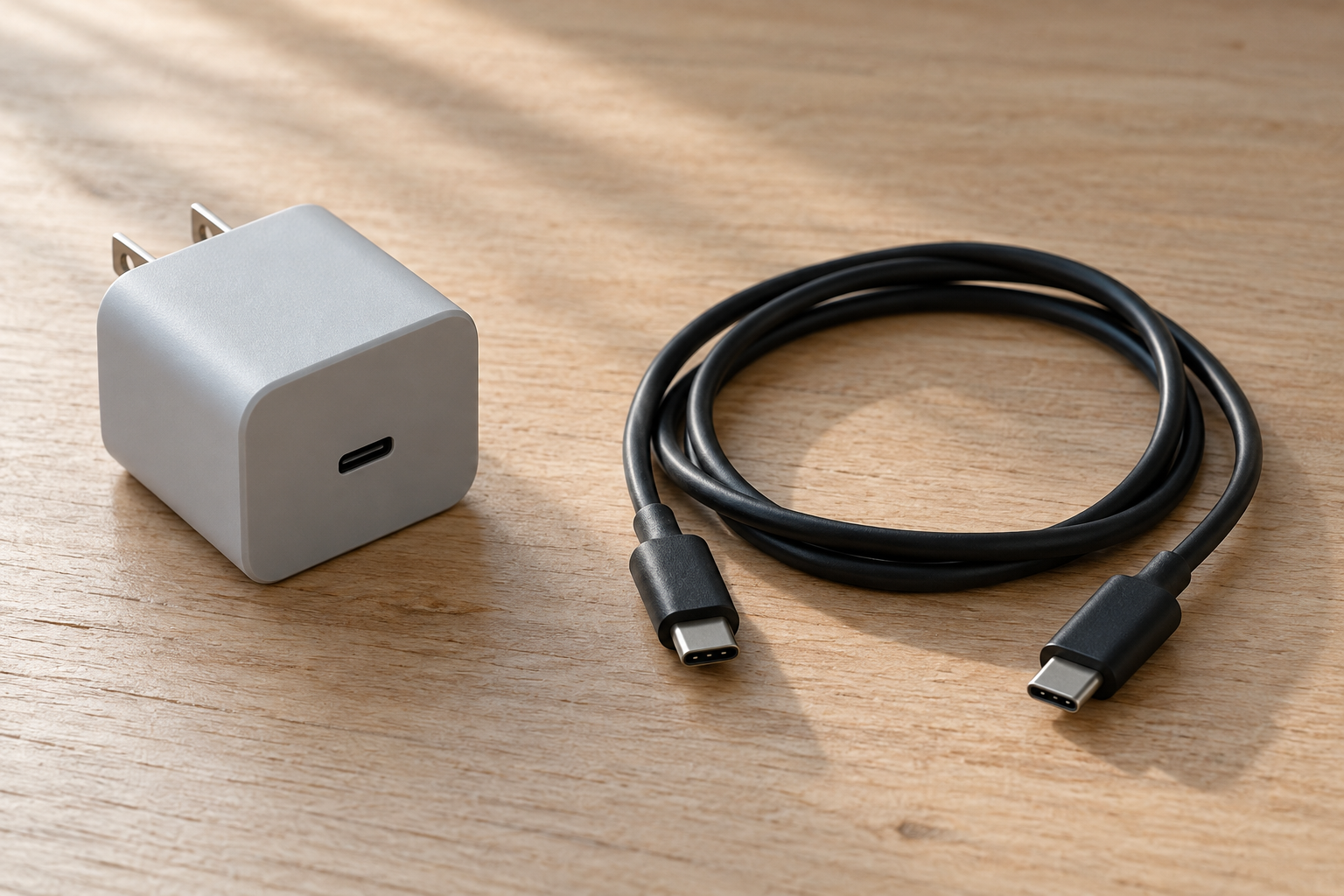
The brick and the cable are both in the power path. A blank housing is not a specification. Read the printed output table and the cable’s power logo.
USB 3.2 and USB4 stay in the data column
The USB 3.2 specification page defines multi-lane operation, up to two lanes of 10Gbps for a 20Gbps transfer rate, and names three transfer rates: 20Gbps, 10Gbps, and 5Gbps. It also says USB Type-C cables were designed from the start to support more than one lane. That sentence is about data lanes. It is not a wattage.
The USB4 page calls USB4 a major update to USB architecture that extends USB Type-C performance, builds on USB 3.2 and USB 2.0, and can run up to 80Gbps over 80Gbps certified cables. It keeps compatibility with USB 3.2, USB 2.0, and Thunderbolt 3, and the link settles at the best speed both ends share. USB-IF’s language guidelines tell makers to advertise data as “supports USB 80Gbps”, “USB 40Gbps”, “USB 20Gbps”, “USB 10Gbps”, or “USB 5Gbps”, and to advertise power with the separate line “supports USB Power Delivery.”
Put those marks in different fields when you shop:
Scroll horizontally to see all columns.
| Mark on the product | Unit | What a mismatch wastes |
|---|---|---|
| 60W or 240W power logo | Watts | A higher PD voltage the cable logo does not cover |
| 5, 10, 20, 40, or 80 Gbps | Data rate | A display or disk that falls back to a slower link |
| “Supports USB Power Delivery” | Protocol claim | A USB-C port that only offers a basic charge |
Where the path fails
Scroll horizontally to see all columns.
| Charging type | What USB-IF calls it | Dominant failure mode | Prevention |
|---|---|---|---|
| USB-C plug | A connector. Reversible. Not required to include PD, USB 3.2, or USB4 | The plug fits, and the higher fixed voltage is never offered | Require the line “supports USB Power Delivery” plus the voltage row you need |
| PD fixed voltage above 20V | 28V above 100W, 36V above 140W, 48V above 180W | The charger and device both list the voltage, and the cable logo is the 60W class | Use a 240W-labeled USB-C to USB-C cable when the device page asks for 28V, 36V, or 48V |
| Shared charger ports | Each device takes only the power it requires | The box wattage is read as the power of every port at once | Use that charger’s simultaneous-port table, which this page does not invent |
| USB 3.2 or USB4 logo | Data rates, including 20Gbps on USB 3.2 and up to 80Gbps on certified USB4 cables | A Gbps mark is treated as a charging wattage | Keep the power logo in a separate column from the data mark |
The third row is the one that used to get filled with sample splits. USB-IF does not publish a universal two-port split. It says each device takes only the power it requires. The allocation for a particular brick is printed by that maker. If the listing has no simultaneous table, you do not yet know what the laptop port keeps when a phone is plugged in beside it.
How to read one charger without borrowing another product’s numbers
Start from the device page, not from the largest number on the brick.
- Write down the fixed voltage that page asks for. If it is 5V, 9V, 15V, or 20V, you are still inside the voltages USB-IF called previously defined. If it is 28V, 36V, or 48V, you are in the 2021 addition.
- Find that same voltage on the charger’s output table, with the current printed beside it. Multiply once: power in watts equals that voltage times that current. Compare the product with the device’s stated need. Do not add every voltage row together and call the sum the port’s output.
- Match the cable logo. The compliance program’s two power labels are 60W and 240W. The 20V at 3A case is the one USB-IF ties to a 60W mark in its 20Gbps example.
- If more than one port will be live, read the simultaneous table for that charger. Leave the table blank in your notes until you have it.
When a charge stops or a laptop reports a weak adapter, change one part at a time. The USB-C charger troubleshooting guide walks through the adapter, the cable, and the device connection. A magnetic wireless puck is a different charging type. The Qi2 and MagSafe comparison is the page for the puck, the case, and the phone. The wall contract on this page does not set that wireless rate.
The cost of a contract you cannot use
There is no price on this page. The waste is capacity you cannot contract, and the time you spend swapping parts. A charger that lists 28V, 36V, or 48V still cannot deliver that fixed voltage through a cable whose power logo stops at the 60W class when the device page asks for a voltage above 20V. The brick you bought for the higher range then behaves like the older 20V path. A USB4 or USB 3.2 mark on the same cable does not repair that. Data lanes and the power logo answer different questions.
The practical ledger is short. Record the device voltage, the charger row you will use, the cable logo, and whether a second port will be occupied. If any cell is blank, that blank is the gap, not a reason to assume the headline wattage. The Charging and Power guides collect the connector, cable, phone, and wireless pages so the next check stays on this site.
Takeaway: Match one documented voltage row and one cable power logo. Leave every phone peak on the page that printed it.
Sources
Checked 18 October 2026. Figures in the body come from these USB-IF pages and the developer update PDF. The document library lists USB Power Delivery Specification Revision 3.2 Version 1.2, with 09/14/2026 on that library page. The voltage and wattage sentences here are the ones still printed on the public charger page and in the 26 May 2021 announcement. Phone peaks are intentionally not copied here.
- USB-IF: USB Charger (USB Power Delivery)
- USB Promoter Group: USB PD Revision 3.1 developer update, 26 May 2021
- USB-IF: USB Type-C cable and connector language guidelines, file dated 20 March 2023
- USB-IF: USB Type-C Cable and Connector Specification page
- USB-IF: Cables and Connectors
- USB-IF: USB 3.2 Specification
- USB-IF: USB4
Related articles
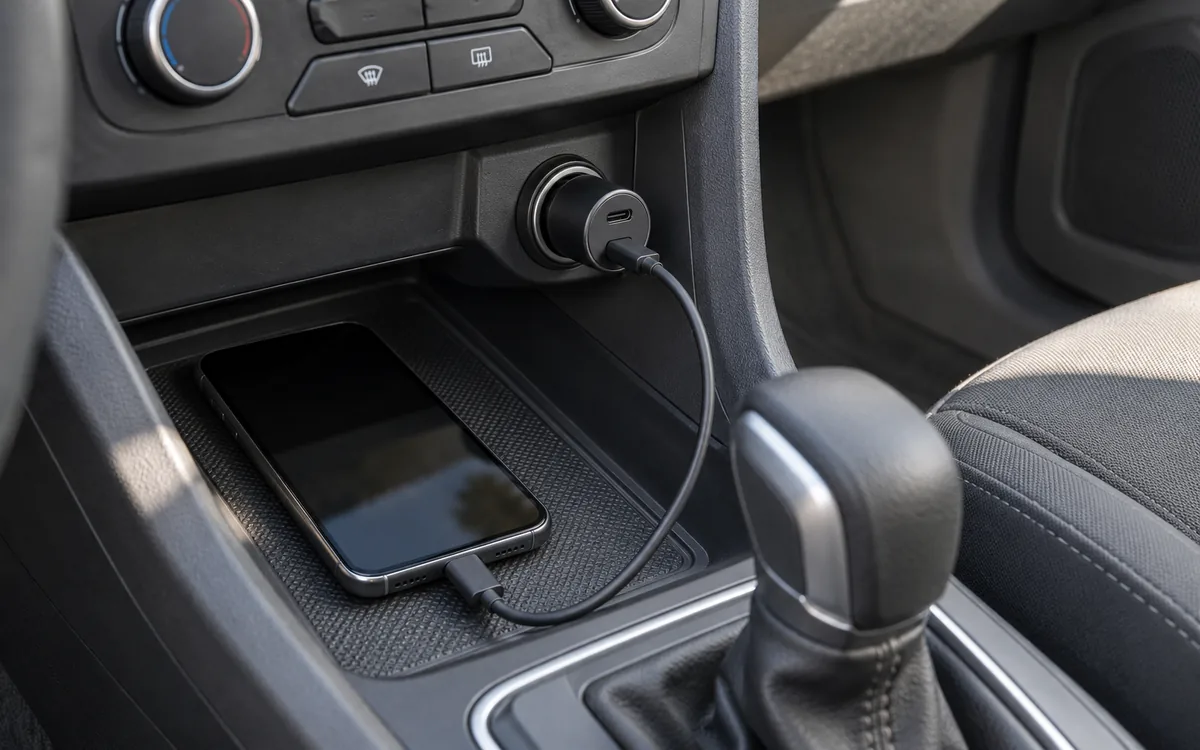
How to Choose a USB-C Car Charger for a Phone or Laptop
Match the socket limit, charger input, port PDO and PPS, and cable logo. PPS is USB PD 3.0 Programmable Power Supply. 60W and 240W are cable logos.
Read article
How to Choose a Fast Charger for a Samsung Android Phone
Match the Galaxy model row, then copy that adapter's PDO and PPS. PPS is USB Power Delivery 3.0 Programmable Power Supply. A 60W or 240W cable mark is a logo.
Read article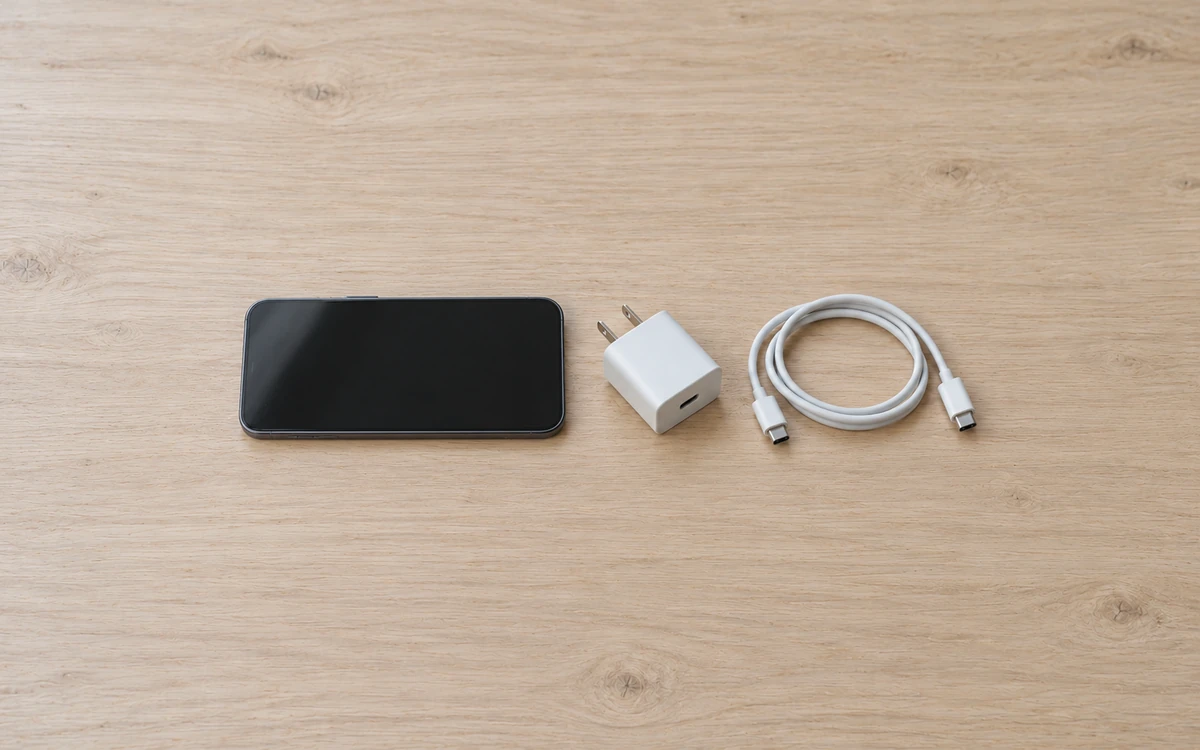
Which USB-C Charger and Cable Does Your iPhone Need?
Match the iPhone port, then copy the adapter watts from the Apple page for that model. A 60W or 240W mark on a USB-C cable is a cable logo. PPS is a USB Power Delivery 3.0 mode.
Read article