Which USB-C Charger and Cable Does Your iPhone Need?
The wrong cable can leave your iPhone uncharged. Match the phone port, cable ends and model-specific USB PD requirements before choosing an adapter.
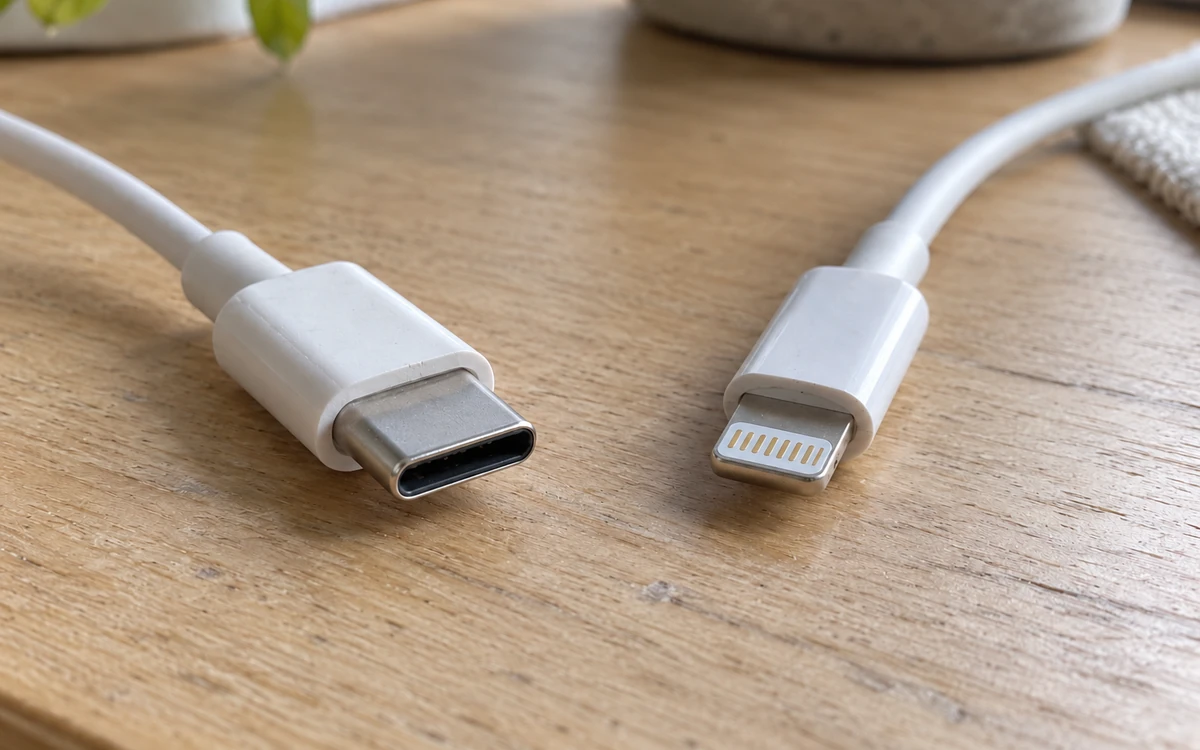
Start with the two cable ends
Buying the wrong cable can leave a usable charger disconnected from your phone. Match the cable to your iPhone’s port first, then choose a USB-C Power Delivery adapter that meets the official conditions for your exact model.
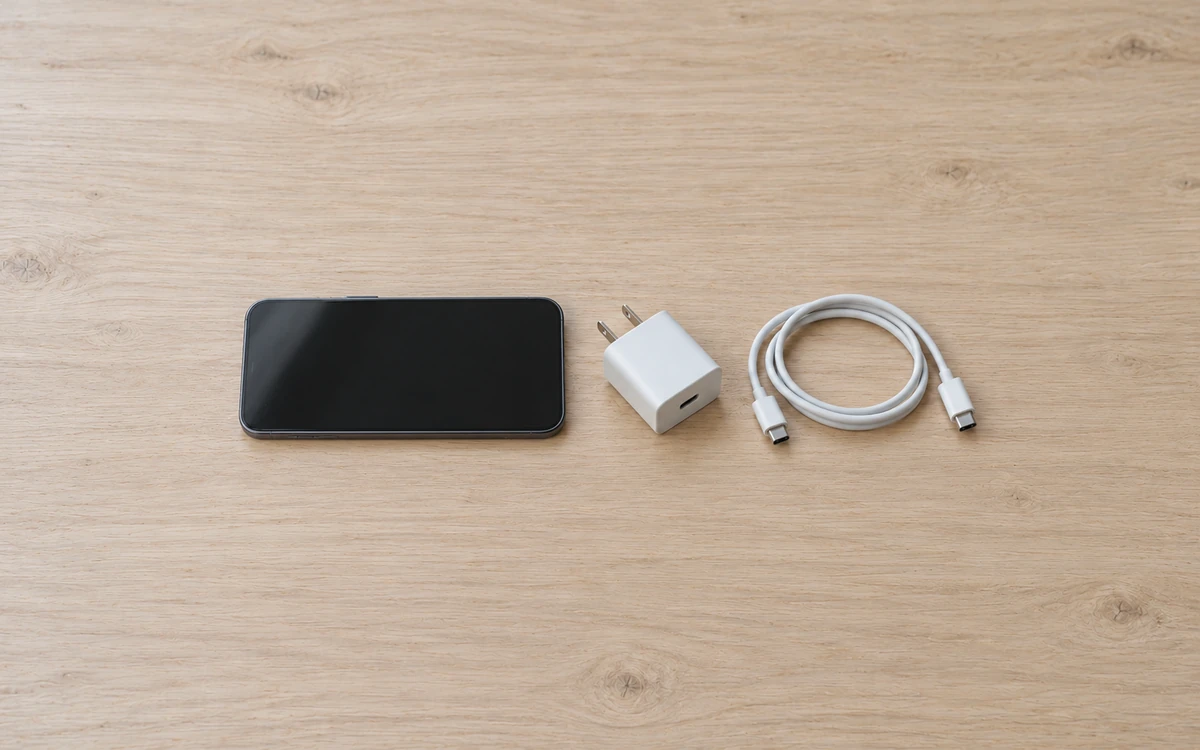
Cover illustration: generic phone, cable and adapter arranged to show the parts to check.
A USB-C charger can serve a Lightning iPhone through a USB-C-to-Lightning cable. An iPhone with a USB-C port needs a USB-C-to-USB-C cable for that same charger. Apple’s USB-C connection guide identifies iPhone 15 and later as USB-C models; the older models in the table below have Lightning ports. “Type C iPhone charger” can describe the adapter end without telling you anything about the phone end.
This guide helps you choose or reuse a wired charging combination. It provides a connector table, model-specific adapter conditions and a purchase checklist. For magnetic pads and stands, use the separate Qi2 and MagSafe compatibility guide.
Scroll horizontally to see all columns.
| Input or item | Typical value or source | Why it matters |
|---|---|---|
| Exact iPhone | Model name in Settings and Apple’s model page | Separates connector and fast-charge conditions |
| Phone-end plug | USB-C or Lightning, from the phone specification | Determines which cable fits |
| Adapter-end plug | USB-C for the PD combinations discussed here | A USB-A cable cannot plug directly into it |
| Adapter output | Selected port’s documented USB PD output | Total charger power can describe a different configuration |
| Faster-charge target | Model-specific Apple conditions below | Ordinary charging and a published fast-charge result differ |
| Additional cable task | Charging only, photo transfer or another connection | A power label does not specify data capabilities |
If you are uncertain about the name, start with Apple’s iPhone identification page. Record the full model rather than a screen size or a case description. This is particularly useful when choosing a charger for somebody else’s phone: a clear model name is more reliable than “the older Pro.”
Scroll horizontally to see all columns.
| Phone connection | Power source | Cable to select | What to check next |
|---|---|---|---|
| Lightning | USB-C PD adapter | USB-C to Lightning | Exact phone’s fast-charge condition and cable licensing |
| USB-C | USB-C PD adapter | USB-C to USB-C | Exact phone’s adapter condition and cable’s supported functions |
| Lightning | Existing USB-A adapter | USB-A to Lightning | Ordinary charging compatibility; do not assume USB-C PD fast charging |
| USB-C | Car USB-A port | Compliant USB-A to USB-C | Confirm the car’s connection and power support; separate from USB-C PD fast charging |
An existing USB-A-to-Lightning combination can remain useful. Apple’s power-adapter overview explains continued use of existing adapters and USB-A-to-Lightning cables in its Lightning-phone guidance; its USB-C connection page separately lists a compliant USB-A-to-USB-C cable for a car with a USB-A port. That car connection example does not establish the charging output of every old USB-A wall adapter. Check the source’s own instructions before deciding which equipment to keep.
Takeaway: The two ends of the cable must match the phone and the power source separately.
Match the adapter to the exact iPhone
Use a model’s official wired fast-charge conditions as a reference, rather than applying one wattage to every iPhone. The figures below describe the adapter in Apple’s documentation. They describe documented combinations, not exclusive minimums for every possible fast-charge mode. They are neither continuous phone input measurements nor a promise about your charging time.
These are checked examples, not a complete list of every mini, Plus and Pro variant. Follow the exact variant’s specification through Apple’s model identification page when it is absent.
Scroll horizontally to see all columns.
| Checked iPhone examples | Phone port / cable from USB-C adapter | Documented adapter combination for wired fast charging |
|---|---|---|
| iPhone 8, XS, 11 Pro, SE, second generation | Lightning / USB-C to Lightning | These specifications list 18W or higher |
| iPhone XR, 11, 12, 13, 14, SE, third generation | Lightning / USB-C to Lightning | These specifications list 20W or higher |
| iPhone 15, 16, 16e | USB-C / USB-C to USB-C | These specifications list 20W or higher |
| iPhone Air and 17e | USB-C / USB-C to USB-C | These specifications list 20W or higher |
| iPhone 17, 17 Pro and 17 Pro Max | USB-C / USB-C to USB-C | Apple’s fast-charge guide specifies 40W or higher |
| iPhone 18 Pro and 18 Pro Max | USB-C / 60W-capable USB-C to USB-C | 60W-capable or higher with Adjustable Voltage Supply; see the protocol condition below |
Apple’s current fast-charge instructions allow comparable third-party USB PD adapters for the earlier-model setup. For the iPhone 18 Pro setup, the main instructions specify a third-party adapter supporting USB PD 3.2 and Adjustable Voltage Supply (AVS), rather than wattage alone. Follow that current instruction when checking a third-party listing. AVS is an additional capability to verify in the maker’s documentation; do not infer it from the connector’s shape.
The current XR and iPhone 11 specifications list 20W combinations, while their testing notes and Apple’s fast-charge guide also record 18W adapters. Keep those statements together: the table does not establish that an existing 18W setup cannot fast charge these phones. Apple’s latest Pro testing notes also specify a 60W-capable USB-C cable; that cable condition belongs with the adapter and AVS checks. Matching a documented combination does not establish a fixed completion time. Apple’s published results have their own test conditions, and temperature, use and settings can change the outcome.
Common mistake: Reading “20W works with iPhone” as proof that it meets every newer model’s fastest documented charging condition.
Takeaway: Copy the requirement from the exact model, including protocol conditions, before comparing adapters.
Choose between an existing 20W adapter and a 30W option
Keep a compatible adapter if it already meets your charging needs. Choose an additional adapter for a documented requirement or a separate device, rather than assuming a higher number makes every iPhone charge proportionally faster.
For the checked phones whose specifications use 20W, an existing compatible 20W USB-C adapter is a sensible starting point. A 30W USB-C option may meet that requirement too, but its rating alone does not establish a shorter charging session. For the checked newer models with different conditions, neither number substitutes for the model-specific requirements above.
If a laptop or tablet also needs power, make that a separate line in your decision. Record the other device’s requirements and whether you will connect both devices together. A charger that suits the phone alone may be a poor choice for the combined setup. The GaN charger selection guide covers that broader device budget; this article keeps the iPhone requirement visible within it.
Apple’s USB-C guide explicitly allows use of suitable higher-wattage USB-C laptop adapters with USB-C iPhones. That makes a compatible adapter you already own worth checking. Inspect its port, documentation and cable before treating it as a free replacement for another charger. Do not use the laptop adapter’s headline rating as a prediction of what the phone will consume.
Takeaway: Buy extra output for a defined requirement, not for an assumed percentage gain in speed.
Check third-party power specifications
Check a third-party adapter by its model and documented output capabilities. Apple permits compliant third-party equipment; a marketplace phrase such as “original type C” does not tell you which product or specification is being supplied.
Use the manufacturer’s documentation for the selected adapter and bundle. A product picture of another version is insufficient; save the exact model’s output table.
For a multiport charger, compare single-device output with simultaneous-use output. If the allocation information is absent, ask for it before paying; do not invent an equal division of the total. Our USB Power Delivery explainer explains why an adapter rating is different from the phone’s actual negotiated input.
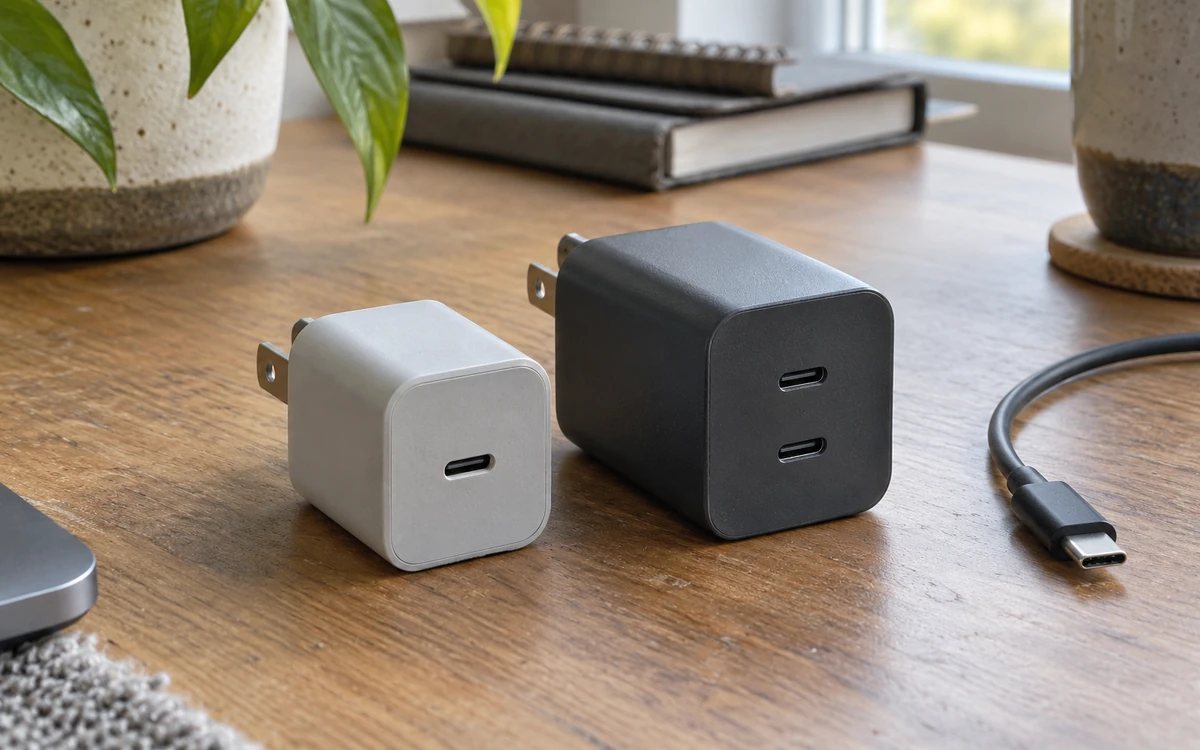
A purchase comparison should contain these fields:
- Exact adapter model and selected bundle.
- Output specification for the intended USB-C port.
- USB PD support and any additional model-specific requirement.
- Output allocation when your other devices are connected.
- Whether the required cable is included or purchased separately.
If a listing highlights PPS, check it against the requirement you actually need. The PPS charging explanation covers that terminology; it should not replace verification of a different capability explicitly named in the phone’s instructions. A collection of protocol names is less useful than a clear match between the phone and the selected adapter.
Takeaway: Verify one named adapter and one intended port configuration, not a generic compatibility slogan.
Check Lightning licensing and USB-C compliance separately
Use Apple’s MFi resources for a third-party Lightning cable claim. Ordinary USB-C charging accessories that use no MFi licensed technology are outside that program, according to Apple’s MFi FAQ. An MFi badge is therefore not the universal requirement for every iPhone charging cable.
For a USB-C-to-Lightning purchase:
- Record the manufacturer, accessory name and identifying details from its documentation.
- Open Apple’s MFi Licensed Accessories search.
- Look for a record matching the accessory, rather than merely a familiar company name.
- Keep the match with the purchase details, and ask the manufacturer to resolve discrepancies.
Apple explains that searchability follows completed certification requirements plus manufacturer opt-in or reporting the accessory as sold or distributed. A missing record therefore does not, by itself, settle whether an item is counterfeit. Equally, a matching record describes an accessory; it does not authenticate the particular unit a seller delivers. This guide does not identify genuine stock or recommend a sales channel.
For USB-C-to-USB-C, check standard compliance and the functions your connection needs. Avoid rejecting an ordinary USB-C charging cable merely because it lacks a Lightning-related badge. For the separate questions of power labeling, data and display support, use the USB-C cable buying guide.
Common mistake: Treating an MFi claim on a bundled cable as certification of the wall adapter and every function in the bundle.
Takeaway: Lightning licensing and ordinary USB-C charging compliance answer different questions.
Keep charging and data requirements separate
Choose the cable for every task you expect it to perform. Apple’s USB-C connection guide says the included iPhone USB-C cable supports charging and USB 2 data. It also identifies supported Pro models that can use higher-speed USB 3 data with an appropriate optional cable.
If you only need power at a bedside outlet, a computer-data upgrade may serve no purpose. If you regularly move large files, check the phone, cable and computer port together. A cable’s wattage label cannot tell you the available transfer speed, and a faster cable cannot upgrade an unsupported phone connection. Write “photo transfer to this computer” as a separate requirement from “charge at the wall.”
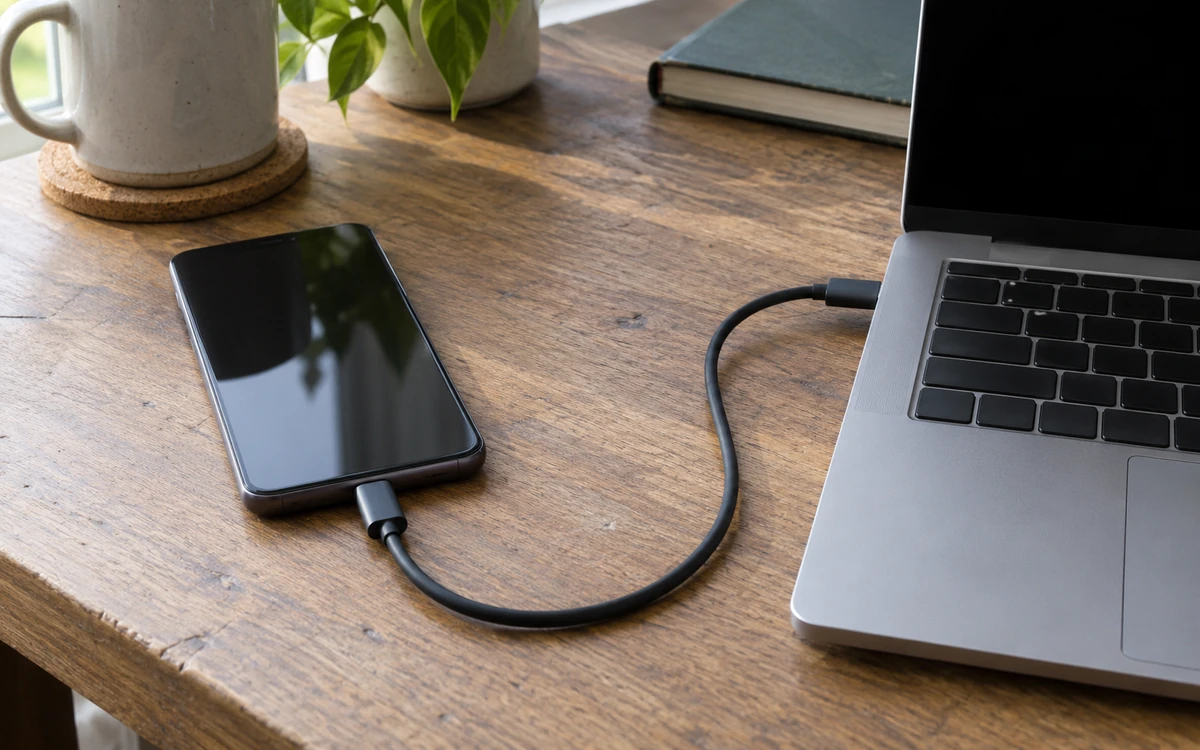
For a cable used with several devices, keep a small list of required functions. Powering the phone, connecting an external drive and linking a display are different tasks. Buy the functions you need rather than relying on “premium” as a technical specification.
Takeaway: Write the data task separately so a charging claim cannot hide a missing connection capability.
Choose cable length and case clearance
Select length and connector fit around where the phone will sit. These are practical checks you can make without assuming an ideal cable length or a performance difference between materials.
Trace the cable route from the outlet to the phone’s resting place, including furniture edges and space for handling. Consider whether you use the phone while connected or leave it untouched. A very short lead might suit a travel pouch but pull on the connector at a desk; an unnecessarily long lead might be awkward on a small bedside table. Choose for your route rather than a universal length rule.
Check the phone with its normal case fitted. Can the connector reach the port without the plug housing pressing against the case opening? Does the cable bend sharply where it exits? Will a stand force the cable against its base? Resolve visible interference by selecting an appropriate cable or case arrangement, rather than forcing the connector.
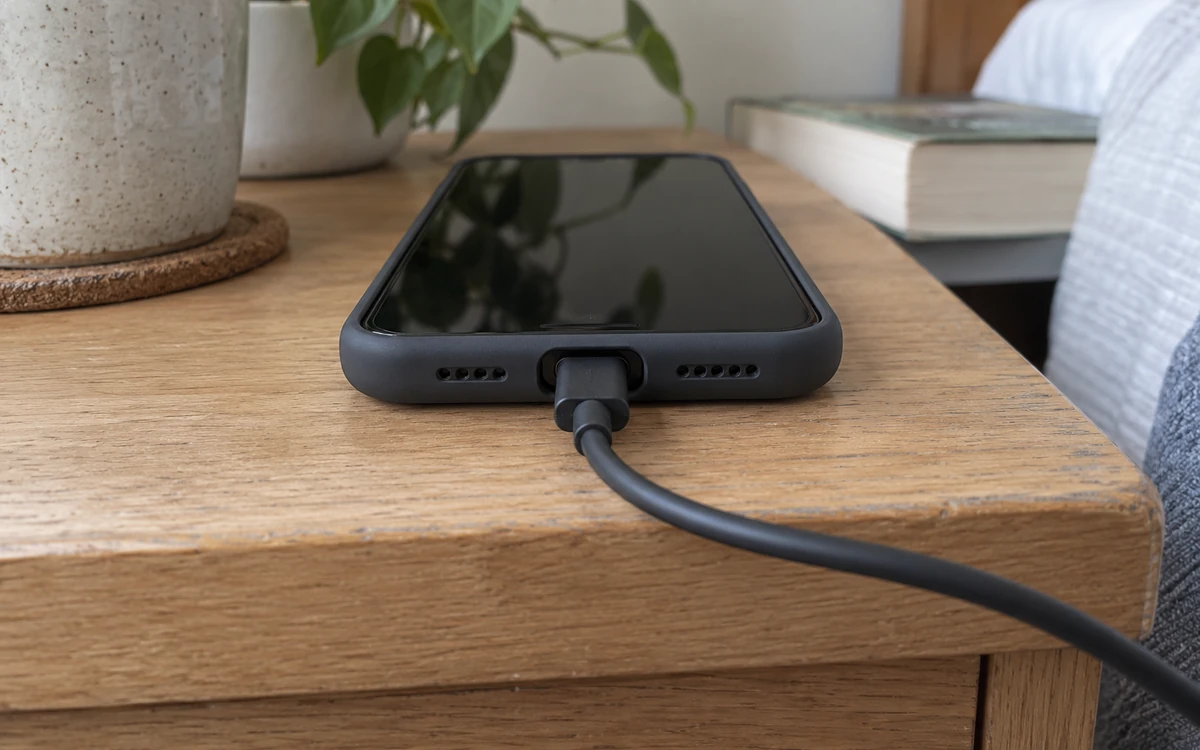
Keep mechanical inspection distinct from electrical diagnosis. If the setup interrupts charging, use the USB-C troubleshooting guide to work through the documented checks. Do not treat a connector that physically fits as proof of a particular fast-charge mode.
Takeaway: Check the case opening and the actual cable route before committing to a length or plug design.
Make the purchase record before ordering
Use this six-step selection checklist to produce a specific combination you can check. It is a practical buying method, not an industry certification procedure.
- Name the phone. Copy the exact model from Settings and confirm its port.
- Name the task. Separate ordinary charging, the documented faster-charge condition and computer data use.
- Record the adapter condition. Keep the official model page with the required wattage and protocol details.
- Choose both cable ends and capability. Include the documented 60W-capable cable condition for the cited 18 Pro setup; check Lightning licensing where applicable and any data functions you need.
- Check the physical setup. Include case clearance, cable route and the other devices sharing the charger.
- Save the selected configuration. Keep the model, bundle and output documentation together.
Scroll horizontally to see all columns.
| Field | Your purchase record |
|---|---|
| Phone model / connector | Exact model; USB-C or Lightning |
| Intended charging task | Ordinary charging or named official fast-charge condition |
| Adapter / port / simultaneous devices | Exact model; port label; other connected devices |
| Required output and protocol | Official condition and matching manufacturer output table |
| Cable | Both end types; documented power capability, including 60W-capable for the cited 18 Pro setup; data functions; length and case fit |
| Licensing check, if relevant | Matching Lightning accessory record or unresolved question |
| Source and selected bundle | Model page, adapter documentation and chosen retailer option |
This record also works when choosing a power bank: use its output-port documentation as the source-side evidence and retain the same phone-end cable check. Do not transfer a wall adapter’s output conditions to a battery pack simply because both have USB-C sockets.
Takeaway: Define the combination before the purchase so “works with iPhone” becomes a checkable requirement.
Check the combination in normal use
Check that the delivered items match your record, then try the setup where you normally charge. Start with the documented adapter port and cable, fit your usual case, and observe whether charging starts and remains connected while the phone rests normally.
You can record a poor fit, an inconvenient route or repeated disconnections without claiming a measured wattage. A charging icon is not a power meter. Avoid assigning a precise charging rate from an animation or comparing sessions that start under different conditions.
If charging is inconsistent, change one item at a time and restore the reference setup between checks. The charger and cable substitution steps give that investigation a separate home. If multiple devices share the adapter, also compare your observations with its documented output allocation before concluding that the phone or cable is faulty.
Takeaway: Compare the delivered configuration with the record and report observable behavior, not inferred electrical performance.
When this does not apply
This purchase checklist does not address damaged equipment, liquid in a connector or an abnormal charging situation. Follow the manufacturer’s instructions and the safety boundaries in the troubleshooting guide before attempting further use.
It also does not promise a battery-health outcome, reproduce Apple’s timed tests or establish the authenticity of a seller’s stock. Wireless charging has a different compatibility chain, covered in the wireless charging guide. Computer, car and accessory connections need their own source-port and data checks. Use the Charging & Power hub to choose the relevant next guide.
Takeaway: Use the checklist for an undamaged wired purchase setup; move safety faults and other connection tasks to their own instructions.
FAQ
Will any USB-C charger work with Apple?
A USB-C socket alone is insufficient evidence. For a USB-C iPhone, Apple describes compliant cables and power adapters, including third-party equipment. For Lightning, you need the appropriate phone-end cable. Check the exact model’s additional conditions if fast charging is the goal.
Is Apple USB-C different from regular USB-C?
The phone uses the USB-C connector standard. The confusing part is the set of functions supported by a particular phone and cable. Physical fit does not establish data speed, display support or a model-specific charging capability.
What is the best USB-C charger for iPhone?
Select the smallest practical set of equipment that meets your documented phone and shared-device needs. Check output allocation, cable inclusion and physical fit. A named requirement is more useful than a universal winner.
Which charging cable is better for my iPhone, 60W or 240W?
Apple’s cited iPhone 18 Pro setup uses a 60W-capable USB-C cable. Check your own model and any other devices you will power; a 240W label alone does not establish faster phone charging. Those labels describe cable power capability, not the wattage the iPhone will necessarily receive. A larger power label alone says nothing about faster data transfer or better fit.
Is a 60W charger too much for an iPhone?
A compliant higher-wattage adapter is not excluded merely by its rating; Apple explicitly permits suitable USB-C laptop adapters for USB-C iPhones. Check the actual port, protocol and cable combination. The rating does not mean that the adapter continually sends that much power to the phone.
What is the safest wattage for charging an iPhone?
A wattage number alone cannot establish safety. Use compliant, undamaged equipment and the manufacturer’s operating instructions, then check the model-specific charging conditions. Do not infer quality or safety from either a small or large headline rating.
Related reading
- USB-C cable selection — separate the power, data and display capabilities on a cable listing.
- GaN charger selection — plan a charger that also serves a laptop or multiple devices.
- USB-C charger troubleshooting — investigate interruptions after the purchase setup has been checked.
Sources
This guide organizes public manufacturer specifications and practical buying checks; it is not a charging benchmark or an endorsement of a particular accessory. Official sources were checked October 9, 2026. Model-specific specifications are linked in the table above.
- Apple: Fast charge your iPhone — current wired adapter and protocol conditions, with Apple’s test limitations.
- Apple: Charge and connect with the USB-C connector on your iPhone — connector compatibility and the distinction between included-cable charging and data capabilities.
- Apple: About Apple USB power adapters — identifying existing adapters and reusing older Lightning charging connections.
- Apple: Identify your iPhone model — access the exact model’s technical specifications.
- Apple: MFi program FAQ and licensed-accessory search — program scope and the conditions for an accessory appearing in the lookup.
Related articles
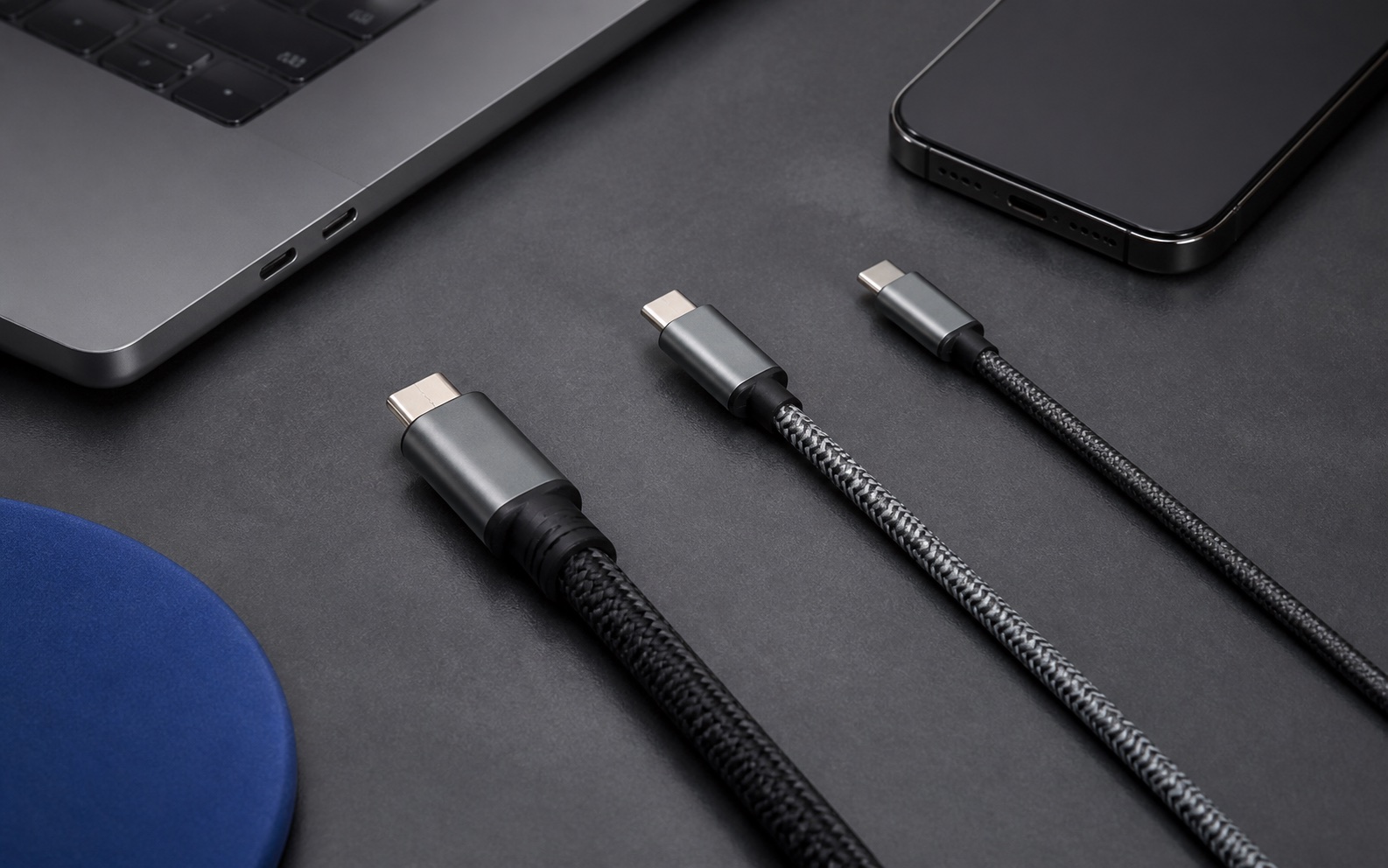
How to Choose a USB-C Cable for Charging and Data
USB-C cables can look identical while supporting different power and data capabilities. Match the cable to the job, then verify the rating and certification.
Read article
USB-C Power Delivery Explained: What a Charger Can Actually Do
USB-C Power Delivery is a charging protocol, not a promise that every USB-C charger, cable, and device will work at full speed.
Read article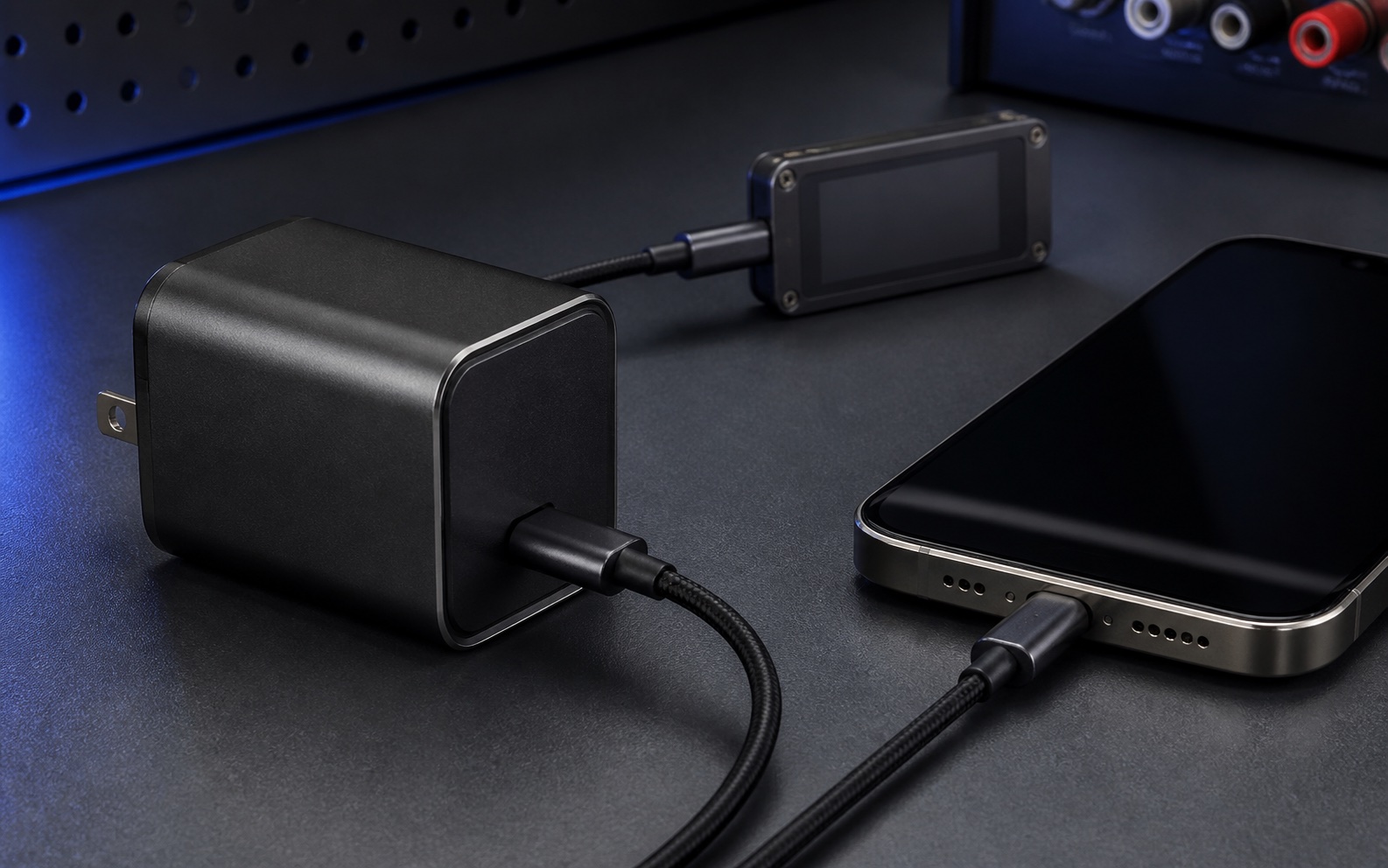
What Is PPS Charging? A Practical USB PD Guide
Equal wattage can still hide a PPS current mismatch. Match the phone mode, charger PPS voltage/current range and cable current rating.
Read article